
Tutorial: Detect PII Without Redacting
Build an n8n workflow that scans a PDF for names, emails, and dates using the Detect PII operation, without modifying the document.
Use the Detect PII operation when you want to know what sensitive information is in a document — for auditing, building a review step before redacting, or routing documents based on what they contain — without modifying the PDF itself.
This tutorial builds a runnable n8n workflow that fetches a public sample document and detects names, emails, and dates in it.
For the general setup/configuration walkthrough, see Setup & Configuration Tutorial first. For redacting a PDF (rather than just detecting PII in it), see Redact a PDF fetched over HTTP. This guide assumes the node is installed and you have a PDF Redaction API credential already.
1. Trigger + HTTP Request
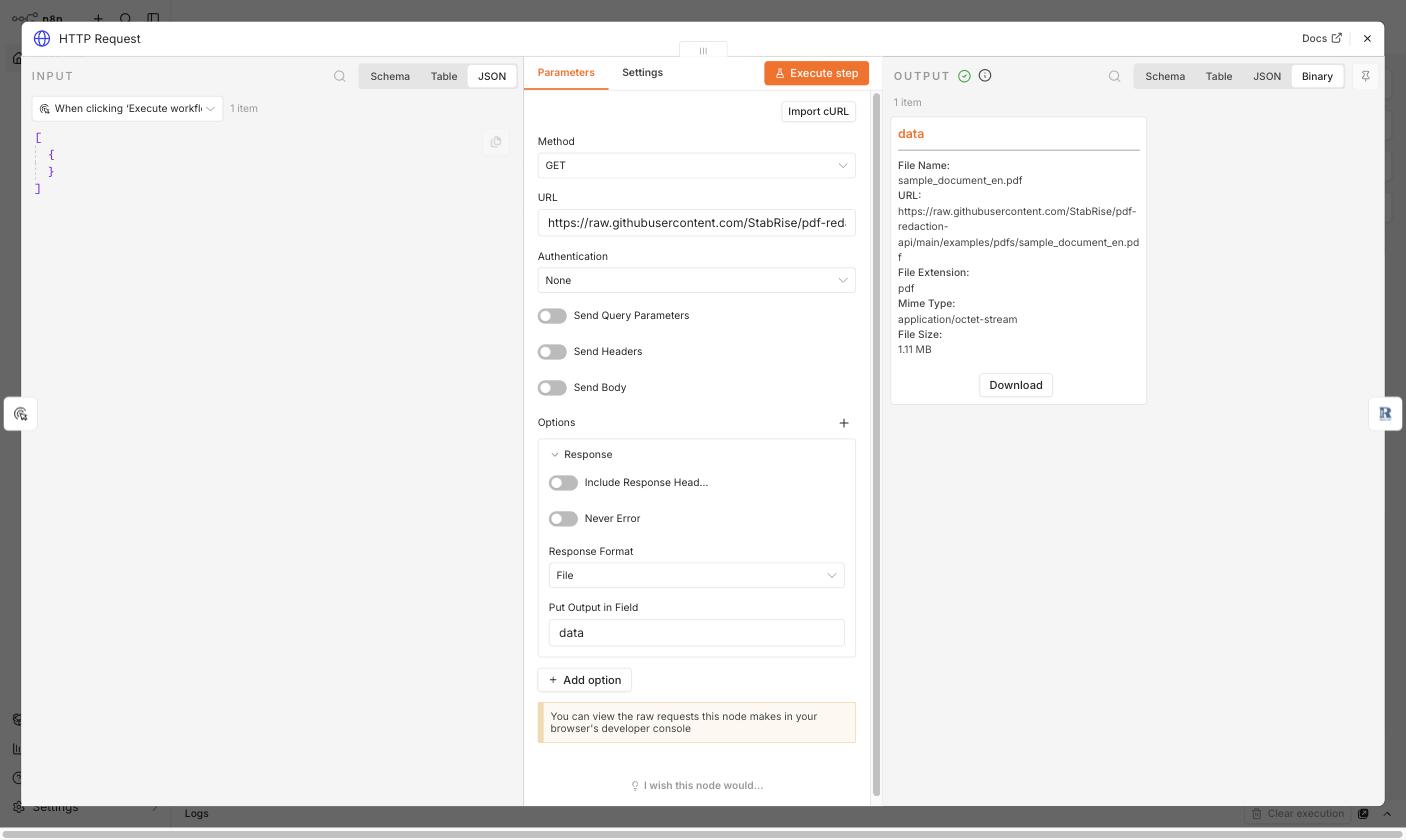
Start with a Manual Trigger, then add an HTTP Request node with:
- Method:
GET - URL:
https://raw.githubusercontent.com/StabRise/pdf-redaction-api/main/examples/pdfs/sample_document_en.pdf - Options → Response → Response Format:
File
Execute the node — the sample document (1.11 MB) comes back as binary data in the data field:
2. PDF Redaction — Detect PII
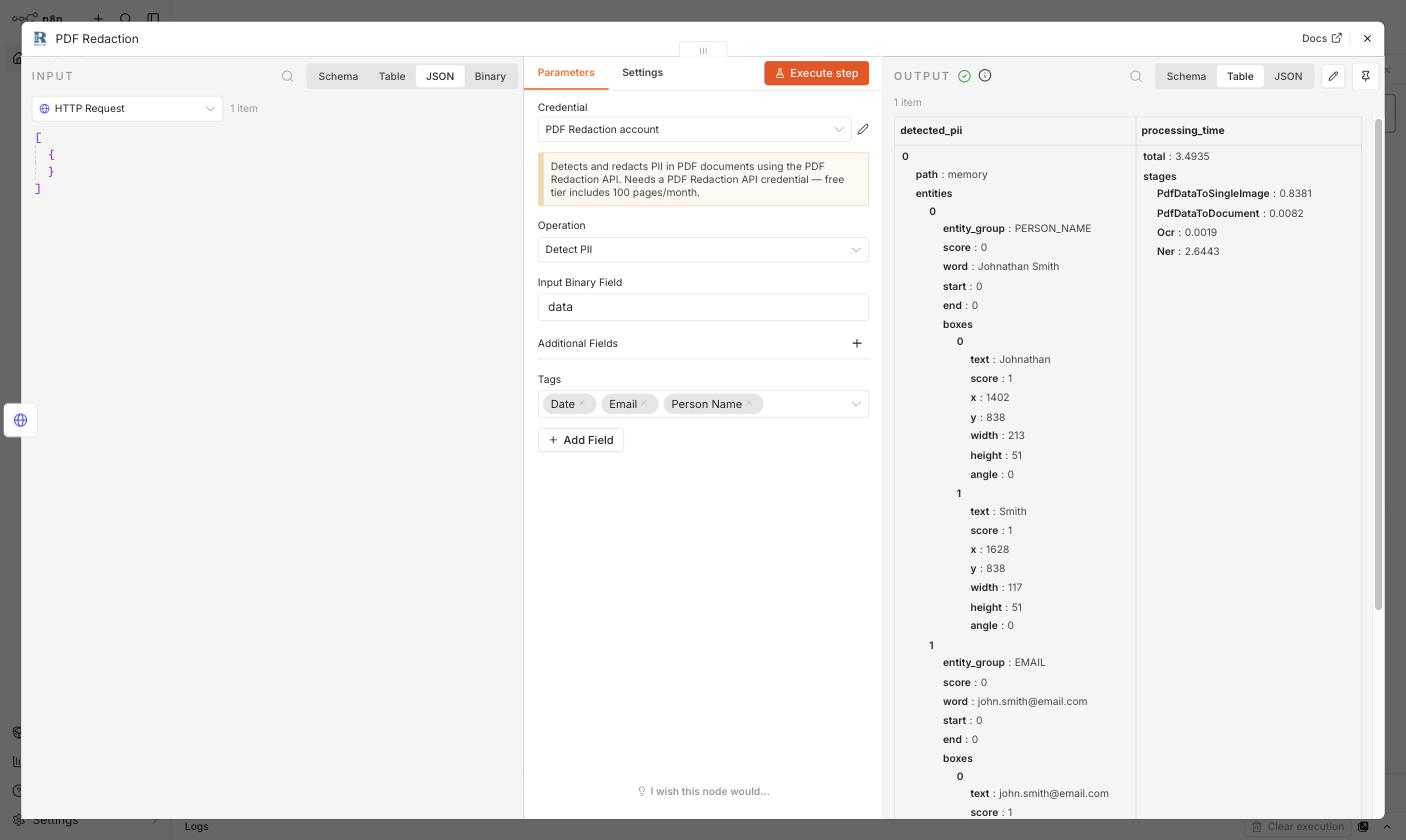
Add a PDF Redaction node after the HTTP Request node and set:
- Credential: your PDF Redaction API credential
- Operation:
Detect PII - Additional Fields → Tags: pick the PII types to look for — this example uses
Date,Email,Person Name
Unlike Anonymize, this operation has no Output Binary Field — it doesn't produce a modified PDF, only detection results.
3. Execute and inspect the output
Click Execute step. The output's detected_pii[].entities array lists every match, each with an entity_group (e.g. PERSON_NAME, EMAIL), the matched word, and boxes giving the pixel location on the page.
For this document, the node found entries like:
PERSON_NAME—"Johnathan Smith"EMAIL—"[email protected]"
along with Date matches further down the list, plus the usual processing_time breakdown.
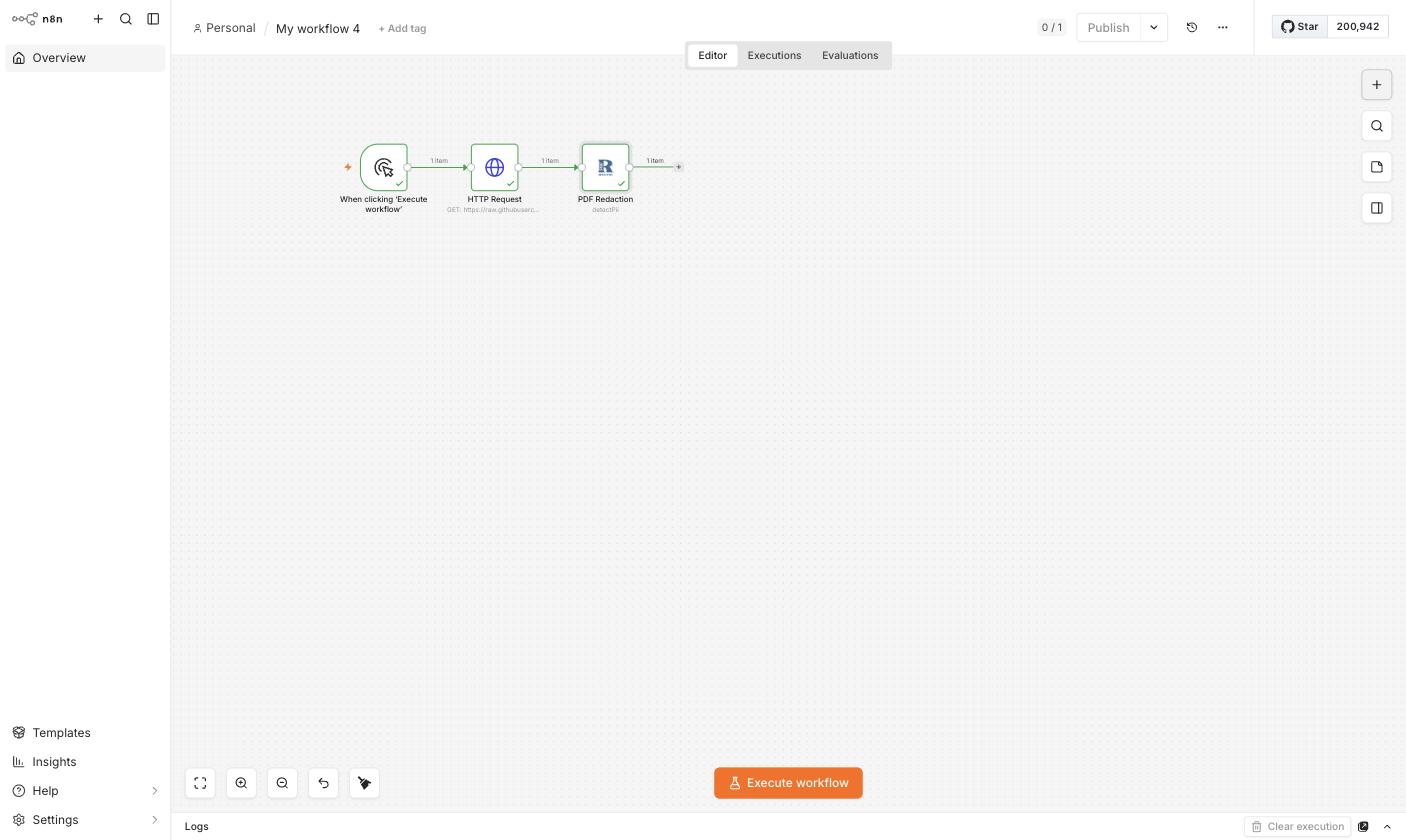
4. The complete workflow
Notes
- If you leave Tags empty, the API only reports the entity types it's configured to detect by default for the request — for predictable results, always set the tags you care about explicitly.
- Combine Detect PII with an IF or Switch node downstream to branch a workflow based on what was found (e.g. only redact documents where
detected_piiis non-empty). - To then redact what you found, feed the same input into a second PDF Redaction node set to Anonymize with matching tags — see Redact a PDF fetched over HTTP.
More resources
Tutorial: Redact a PDF Fetched Over HTTP
A complete, runnable n8n workflow that fetches a PDF over HTTP and redacts a face in it with the PDF Redaction node.
Obsidian
Redact PDFs from inside Obsidian using the PDF Redaction plugin — AI-detected PII, manual review, and redaction, without leaving your vault.