
Account and workspaces
Manage your PDF Redaction account: sign-in options, profile and notifications, support tickets, workspaces, team members, projects and your document list.
One account works across every PDF Redaction product: the online editor, Redaction Studio, Studio Desktop and the API. Your plan and page allowance are shared between them. The workspace, member, billing and usage pages described here look the same in each product.
Sign in
Click Login in the editor or on the website. You can sign in with:
- Microsoft
- Email: type your address, click Continue with Email and open the sign-in link we send you. No password is needed.
The first sign-in creates your account, with a Personal workspace and a Default project.
The user menu
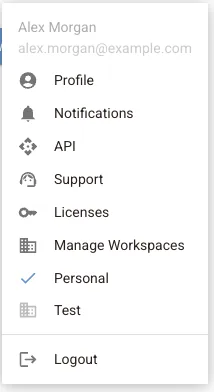
When you are signed in, your avatar in the top right opens the user menu:
| Item | What you find there |
|---|---|
| Profile | Your plan, usage, name and e-mail, billing and notification settings |
| Notifications | Messages about your account, plan, API keys and licences |
| API | API keys for the REST API and their usage |
| Support | Your support tickets |
| Licenses | Licence keys for Redaction Studio |
| Manage workspaces | Workspaces, members, projects and billing |
| Logout | Sign out on this device |
Below Manage workspaces, the menu lists your workspaces. Click one to make it the active workspace; a tick marks the active one. Pages you scan count against the active workspace.
Profile
The profile page has these tabs:
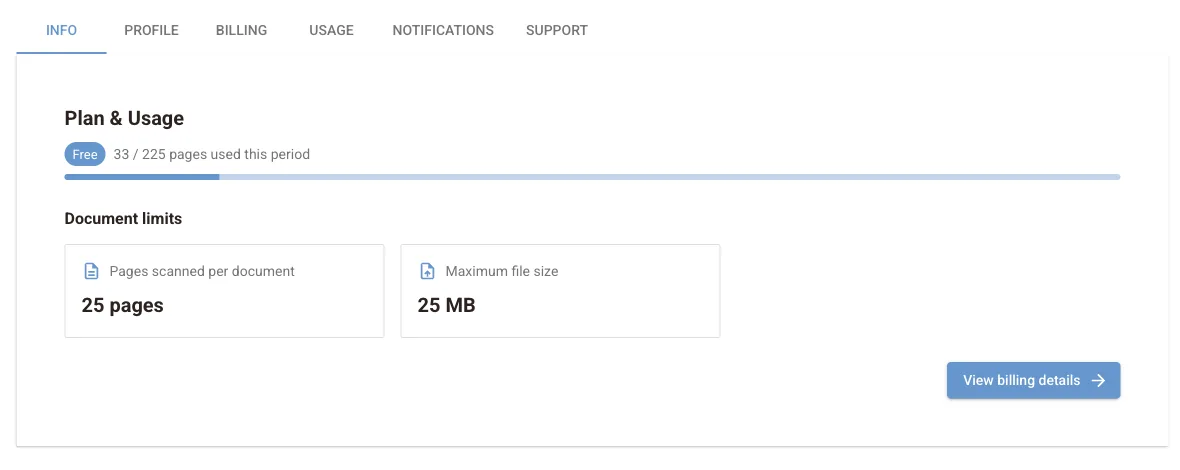
- Info: your current plan, pages used this period and your document limits.
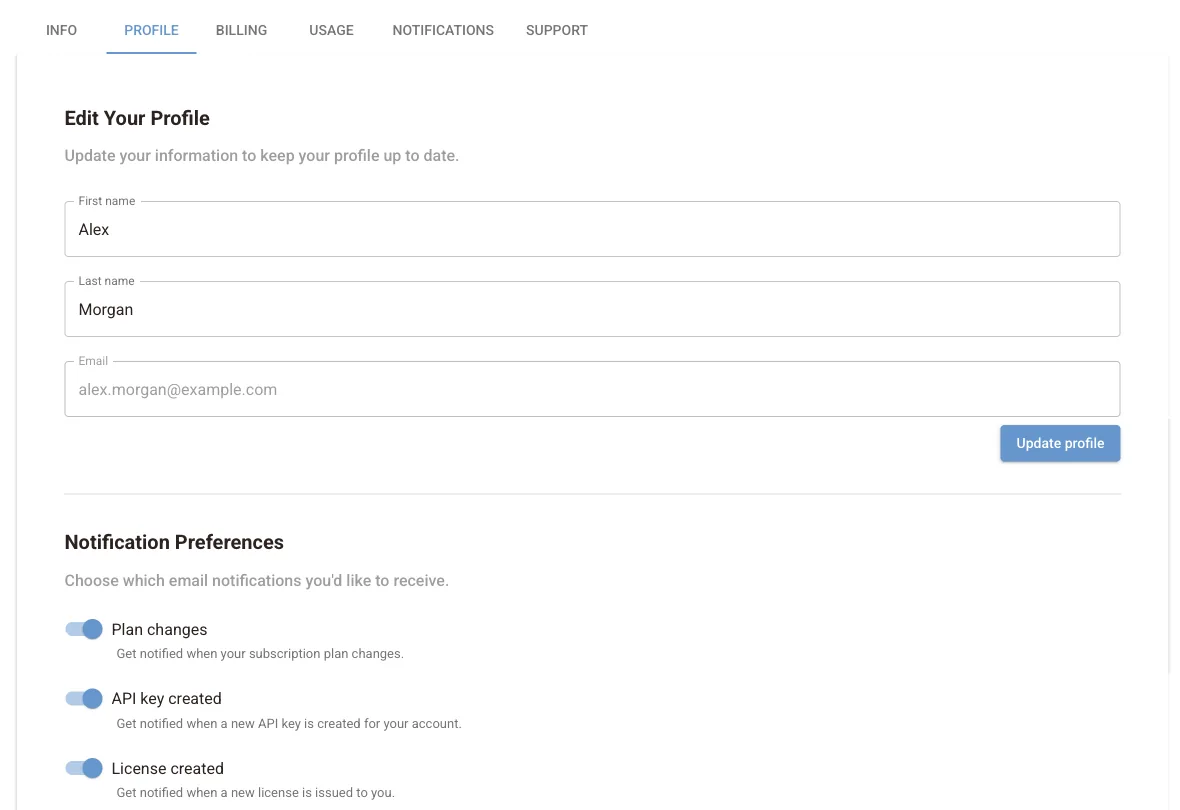
- Profile: first name, last name and e-mail address.
- Billing and Usage: shortcuts to your personal workspace's billing and usage.
- Notifications: your notification feed and e-mail preferences. You choose which e-mails you get: plan changes, API keys created or expiring, licences created or expiring, and product news.
- Support: open and past support tickets with their status. Tickets are filed under a category: billing, technical, API, account, feature request, demo request or other.
Workspaces
A workspace is where billing and usage live. Everyone gets a Personal workspace. Create more for a team or a client from Manage workspaces → New Workspace.
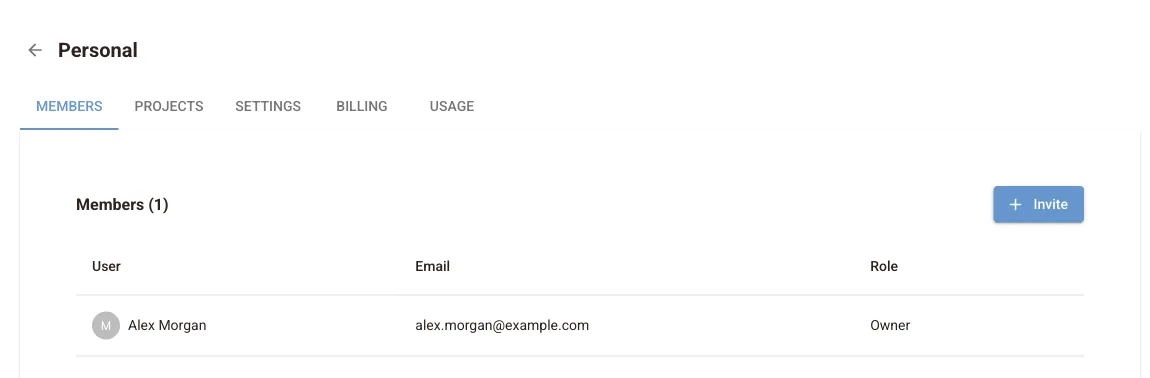
Each workspace has these tabs:
| Tab | What it does |
|---|---|
| Members | People in the workspace and their role: Owner, Admin, Member or Viewer. Invite people by e-mail and see pending invitations |
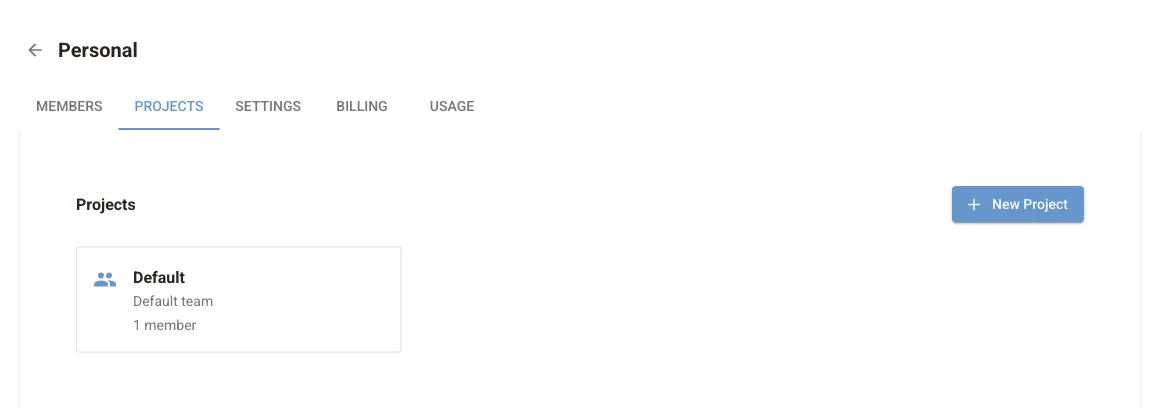
| Projects | Group documents by matter, client or team. Each project has its own documents, members and settings |
| Settings | Rename the workspace, or Delete Workspace |
| Billing | The workspace's plan, payment methods, credits and invoices, see Plans and billing |
| Usage | Pages processed in the current and past periods, see Usage and limits |

Documents
Open a project and choose Documents to see the documents opened while signed in. You can open, rename, download or delete each one.
The online editor records each document's name, size and page count here. It does not upload the PDF itself, unless your browser cannot store it locally, see Privacy and data handling. Files you sync from Redaction Studio are stored in full.
Delete your account
To close your account and delete its data, contact support from the e-mail address you sign in with. Deleting a single document or a workspace is available in the interface.
Next steps
OCR settings
How the online editor runs OCR in your browser: automatic OCR for pages without text, reading text inside pictures, choosing the OCR language and CPU threads.
Plans and billing
How to change your PDF Redaction plan, add or update a payment method, top up page credits, edit billing details, download invoices and cancel a subscription.