
Unredact PDF Online — Verify Your Redaction Actually Worked
Before you send a redacted PDF anywhere, open it here and check what's really underneath the black boxes. Our free browser-based tool lets you inspect and re-secure a PDF so no hidden text, layers, or metadata slip through.
Unlimited number of documents, with 100 pages per month free.
Drop a redacted PDF here to check it
or click to choose a file. It opens in your browser and isn't uploaded.
🔒 Your PDF is opened and checked right in your browser. The file isn't uploaded.
What Does Unredacted Mean?
Unredacted means a document is shown in full, with nothing blacked out, blurred or removed. An unredacted version contains every name, number and passage of the original. A redacted version has the sensitive parts permanently deleted, usually marked with black boxes, before it is shared, filed or published.
Unredacted vs Redacted
The same document often exists in both forms. The unredacted original stays with its owner, the court or the agency, while the redacted copy is what gets released. If a "redacted" PDF still holds the original text under its black bars, it is effectively unredacted: anyone can copy the text out. That is exactly what this tool checks.
You will also see the spellings un-redacted, un redacted and non-redacted; they all mean the same thing. To unredact is to recover hidden content, which only works when the redaction was never real. See how to check a PDF redaction, or redact a PDF properly so there is nothing left to recover.
See Exactly What a Fake Redaction Is Hiding
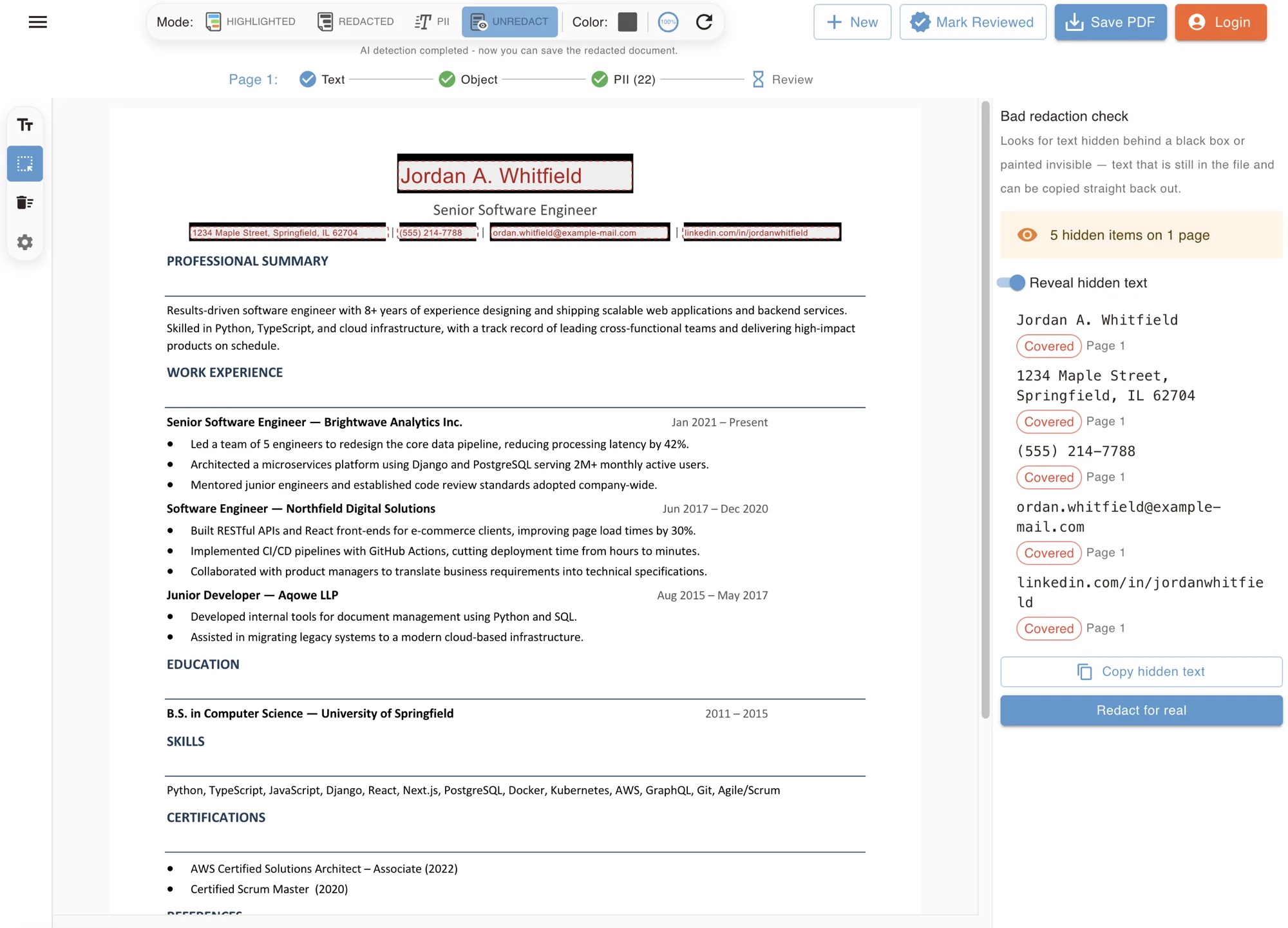
Unredact mode renders every page and compares it against the text layer, then lays the recovered text back over the black boxes. This CV looks redacted — the name, address, phone, email and LinkedIn are all still inside the file.
Check Your PDF Redaction in 3 Steps
No software to install — everything runs securely in your browser.
Upload Your Redacted PDF
Drag & drop the PDF you already redacted, or any document you're about to send.
Inspect What's Underneath
Open the editor to see if any selectable text, hidden layers, or leftover metadata remain beneath your redaction marks.
Fix and Re-Export
Flatten and permanently remove anything still recoverable, then download a securely redacted PDF.
How to Unredact a PDF (and Why You Usually Shouldn't Need To)
Searching for how to unredact a PDF online usually means one of two things: you're worried a document you already redacted wasn't actually secured, or you're wondering whether redacted PDFs can be reversed by someone else. The honest answer to the second question is reassuring — a properly applied redaction, where the underlying text, images, and metadata are permanently deleted and the page is flattened, cannot be undone or unredacted by anyone, including the person who created it. That permanence is the entire point of redaction, and it's exactly what PDF Redaction is built to do.
Where this tool actually helps is the first scenario: checking your own work before you hit send. A huge number of ‘redacted’ PDFs online are not truly redacted at all — someone simply drew a black rectangle or highlight over sensitive text in a PDF editor, leaving the original characters selectable, searchable, and copy-pasteable underneath. Journalists, government agencies, and law firms have all published documents where a simple Ctrl+A and copy revealed the ‘redacted’ text in seconds. Our free unredact PDF checker opens your file in the same editor used to redact it, so you can select, search, and inspect what's really left behind the black bars before anyone else does.
You can also use this tool to undo redaction from a PDF that you haven't saved or flattened yet. While you're still working in the editor — before you export the final, permanently redacted file — every automatic and manual redaction can be freely removed or adjusted. That gives you a safe space to experiment, fix mistakes, and re-check coverage. Once you export, though, the redaction is baked into the file for good: there's no unredact PDF online trick, browser extension, or paid service that can pull real, permanently redacted content back out, because the data itself has been deleted rather than merely hidden.
If you're verifying a PDF someone else sent you, use this same workflow responsibly: check your own documents, or documents you have explicit permission to review, rather than attempting to recover information someone else deliberately restricted. PDF Redaction is a verification and redaction tool, not a bypass tool — it's designed to help you confirm that your own black boxes are doing their job, not to strip protection off other people's files. Run it before every sensitive PDF you publish, email, or upload, and you'll catch the gap between ‘looks redacted’ and ‘is actually redacted.’
Unredact PDF FAQs
- Can I unredact a PDF?
- If a PDF was properly redacted — meaning the underlying text, images, and metadata were deleted and the page was flattened, as PDF Redaction does — then no, it cannot be unredacted by anyone. That's what makes redaction different from just drawing a black box over something. This tool helps you verify your own PDFs were redacted that way, rather than reverse someone else's redaction.
- How do I check if a PDF redaction is secure?
- Open the file in our editor and try selecting, searching, or copying text in the areas you redacted. If you can still select or search text under a black bar, or if metadata still contains the original content, the redaction wasn't done properly. Re-apply redaction in the tool and export again — the export process permanently deletes the underlying content rather than just covering it.
- How to unredact a PDF?
- You generally can't, and that's by design. A correctly redacted PDF has had the sensitive content permanently deleted, not hidden, so there's nothing left to restore. What you can do is use this tool before you save a redaction: while you're still editing, any automatic or manual redaction can be undone or adjusted freely, letting you review coverage and fix mistakes. Once you export the final file, the redaction becomes permanent.
- Can I undo redaction from a PDF I'm still working on?
- Yes — as long as you haven't exported the final file yet, you can undo or adjust both automatic and manual redactions inside the editor at any time. This is useful for correcting over-redaction or re-checking a page before you commit to the final export, which is when redactions become permanent and irreversible.
- Is unredacting someone else's PDF legal?
- Attempting to recover information someone else deliberately redacted from a document you don't own or have permission to access can raise serious legal and ethical issues, depending on the document and jurisdiction. This tool is intended for checking and securing your own redactions, or documents you're explicitly authorized to review — not for bypassing protections on other people's files.
- Does PDF redaction remove text, or just hide it?
- It depends entirely on the tool. Many PDF editors only draw a colored shape over the text, leaving the original characters intact and recoverable underneath. PDF Redaction removes the underlying text, images, and metadata and regenerates the PDF from scratch, so there's nothing left to extract — that's the difference between ‘looks redacted’ and ‘is redacted.’
- What is the difference between redacted and unredacted?
- A redacted document has sensitive information permanently removed and usually replaced with black boxes, so it can be shared safely. An unredacted document is the complete original with everything visible. Courts, agencies and companies often keep the unredacted version internally and release only the redacted copy.
- Can a redacted document be unredacted?
- Only if the redaction was done badly. Many leaked "unredacted" court filings and FOIA releases came from PDFs where text was merely covered with a shape, so it could be copied out. A real redaction deletes the content and cannot be reversed. Open your file here to see which kind you have.
Ready to Make Sure Your PDF Is Actually Redacted?
Run one more check before you send, publish, or file it away. Open your PDF in the editor, confirm nothing sensitive is left recoverable, and export a permanently redacted file with confidence.