
Detection settings
Configure how the online editor finds personal data: Cloud PII, in-browser Local NER models, rule-based patterns, detection thresholds, faces and signatures.
Open Settings (the gear at the bottom of the left toolbar) and choose PII detection or Object detection. Settings are saved in your browser and apply to the next detection run. Click the refresh button in the top bar to run detection again on the open document.
PII detection
The PII detection section has three tabs. A green dot on a tab means that detector is on.
Cloud PII
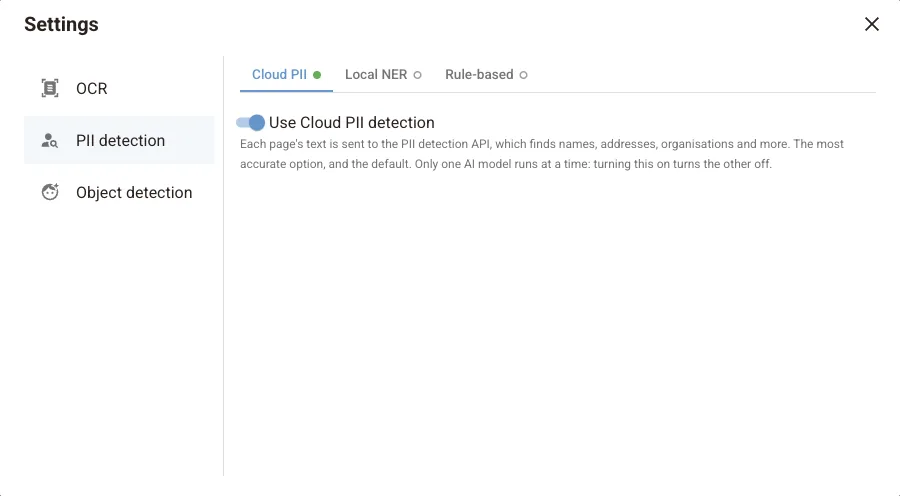
Use Cloud PII detection is on by default. Each page's text and word positions are sent to the PII detection API, which returns the names, addresses, organisations and other entities it finds. The file itself is not uploaded and the API does not store the text. This is the most accurate option.
Local NER
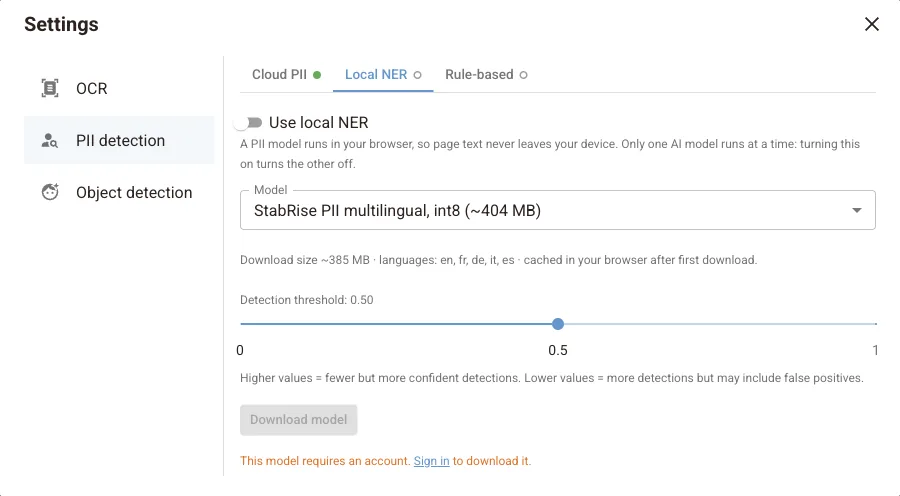
Use local NER runs a PII model in your browser instead, so page text never leaves your device. Turning it on turns Cloud PII off: only one AI model runs at a time.
- Pick a Model.
- Click Download model. The model is downloaded once and cached in your browser.
- Turn on Use local NER.
| Model | Download | Languages | Account needed |
|---|---|---|---|
| StabRise PII multilingual (default) | ~404 MB | English, French, German, Italian, Spanish | Yes |
| StabRise PII multilingual GLiNER2 | ~1.2 GB | English, German, Polish, Spanish | Yes |
| GLiNER multilingual PII | ~580 MB | Multilingual | No |
| GLiNER PII edge | ~181 MB | Multilingual | No |
| GLiNER small English | ~306 MB | English | No |
| GLiNER multilingual | ~580 MB | Multilingual | No |
Detection threshold (default 0.50) sets how confident the model must be. Raise it for fewer, surer findings. Lower it to catch more, at the cost of more false positives.
Local models run on your CPU. On a slow machine or a long document, detection takes longer than Cloud PII. The number of CPU threads is set in OCR settings.
Rule-based
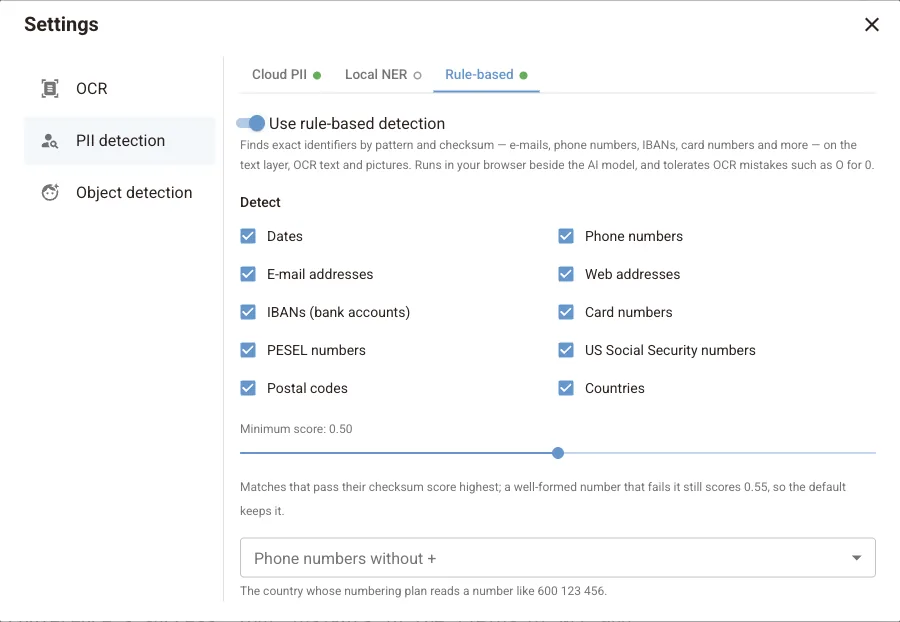
Use rule-based detection finds exact identifiers by pattern and checksum. It runs in your browser next to the AI model, on the text layer, OCR text and text in pictures, and tolerates OCR mistakes such as the letter O for zero.
Choose what to detect: dates, phone numbers, e-mail addresses, web addresses, IBANs, card numbers, PESEL numbers, US Social Security numbers, postal codes and countries.
| Setting | What it does |
|---|---|
| Minimum score (default 0.50) | Matches that pass their checksum score highest. A well-formed number that fails its checksum still scores 0.55, so the default keeps it |
| Phone numbers without + | The country whose numbering plan is used to read numbers written without a country code, such as 600 123 456 |
If you turn off both AI models, rule-based detection stays on so that something always looks for personal data.
Which detector should I use?
Use Cloud PII for the best accuracy on names and addresses. Use Local NER when page text must not leave your device. Add Rule-based when your documents contain structured identifiers, such as bank statements, invoices or HR forms. Rule-based finds them precisely and validates checksums.
Object detection
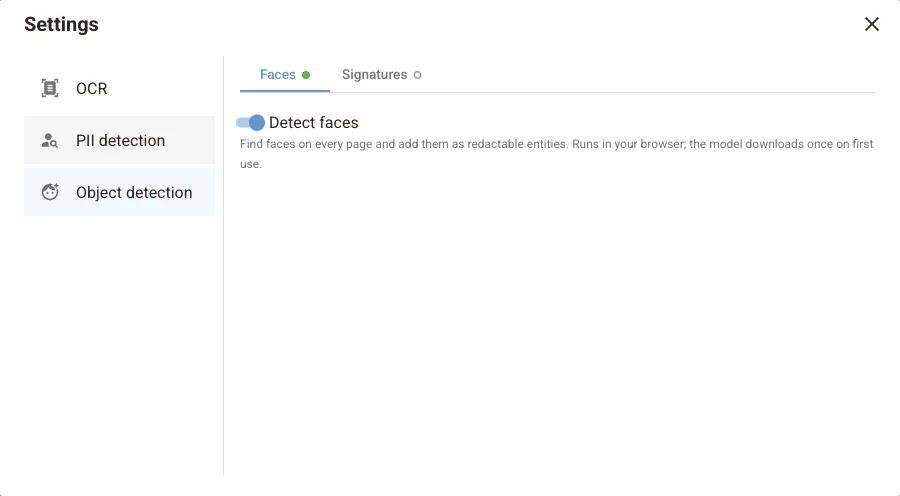
| Tab | Default | What it does |
|---|---|---|
| Faces | On | Finds faces on every page and adds them as redactable face entities |
| Signatures | Off | Finds handwritten signatures and adds them as redactable entities |
Both run in your browser. Each model is downloaded once on first use.
Next steps
Bad redaction check
Use the editor's Unredact mode to scan a PDF for text left under black boxes or painted invisible, reveal or copy it, and redact it properly in one click.
OCR settings
How the online editor runs OCR in your browser: automatic OCR for pages without text, reading text inside pictures, choosing the OCR language and CPU threads.