
Review and edit redactions
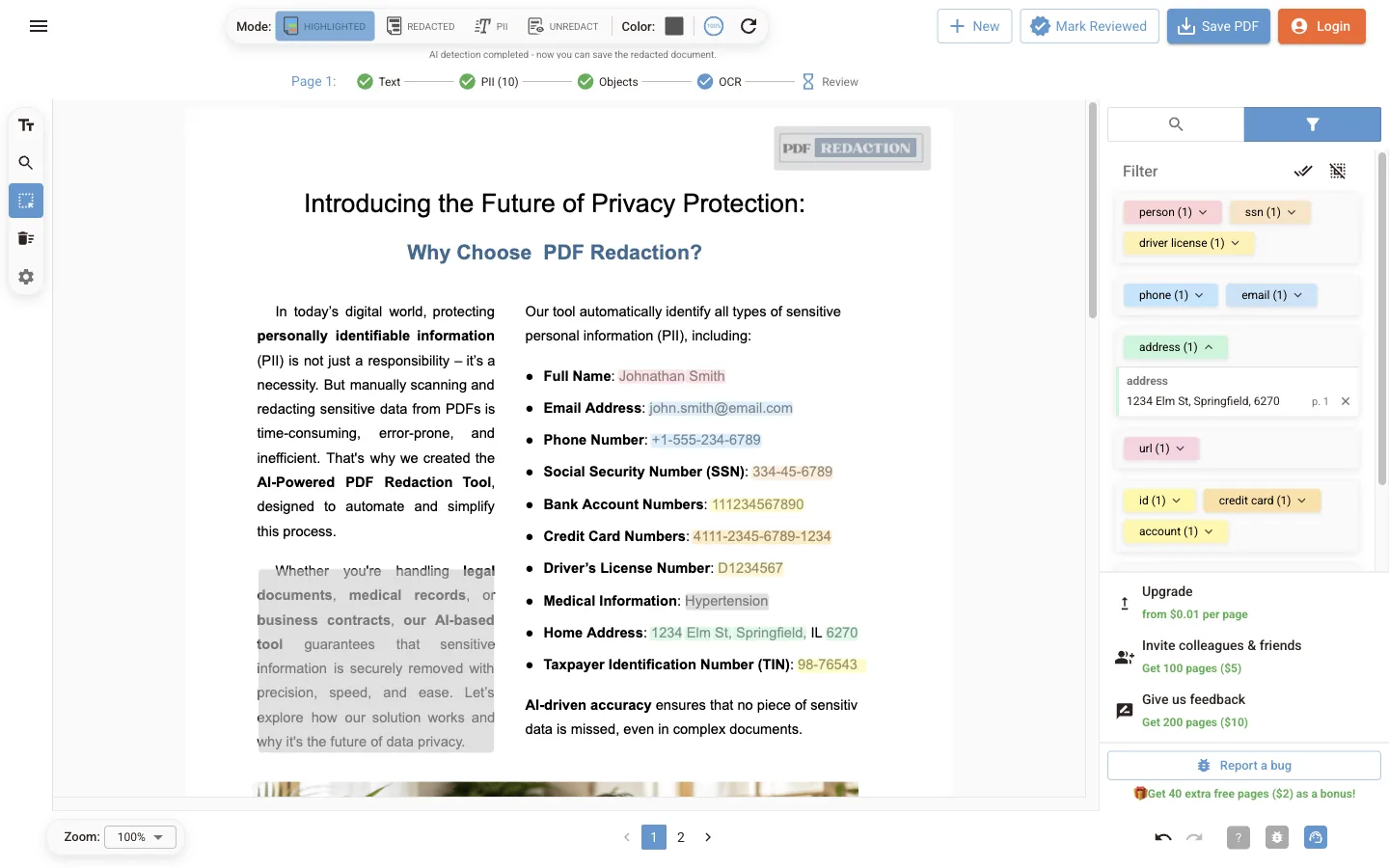
Reference for reviewing findings in the online editor: the PII filter, the findings table, Manual Redaction search, text selection, drawn boxes and review status.
AI detection gives you a first draft. This page covers the controls you use to turn that draft into the final set of redactions. For a narrative walkthrough with tips on what to look for, see Manual redaction.
PII filter
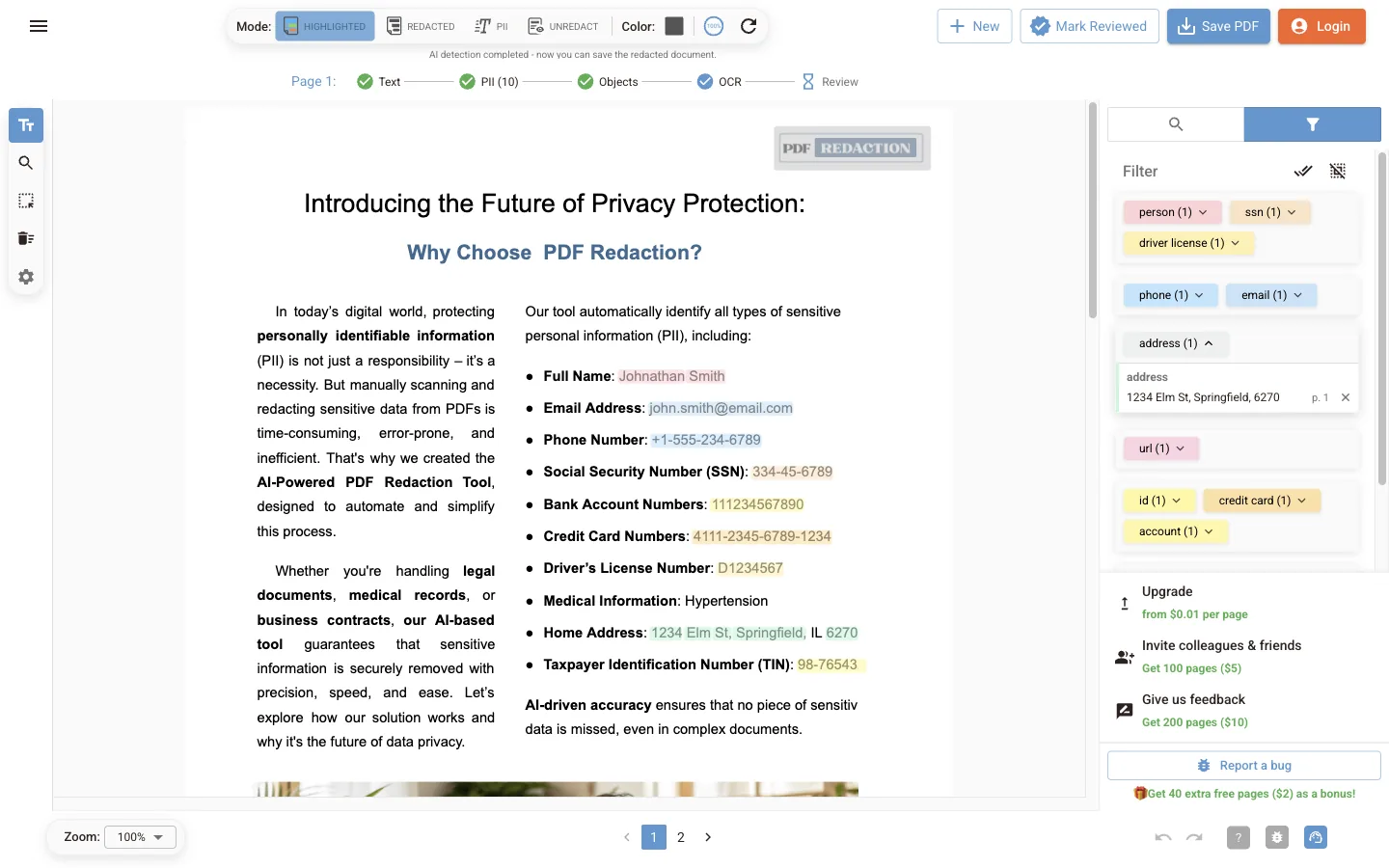
The PII Filter tab on the right lists every type of personal data found in the document, with a count, grouped as:
- Personal: person, age, passport, SSN, driver licence, face
- Contact: phone, email
- Location: location, address, postal code
- Web: IP address, URL
- Identifiers: ID, credit card, account, date
- Other: organisation, medical condition
- Manual: text and boxes you added yourself
Signatures appear as their own type when signature detection is turned on.
| Action | How |
|---|---|
| Hide a whole type | Click the type chip. It turns outlined and its boxes are left out of the saved file |
| See the items of a type | Click the arrow on the chip. Each item shows its text and page |
| Remove one item | Open the type's list and click × next to the item |
| Select or clear all types | Use the two icons next to Filter |
Hidden types are not deleted. Click the chip again to bring them back.
Findings table (PII mode)
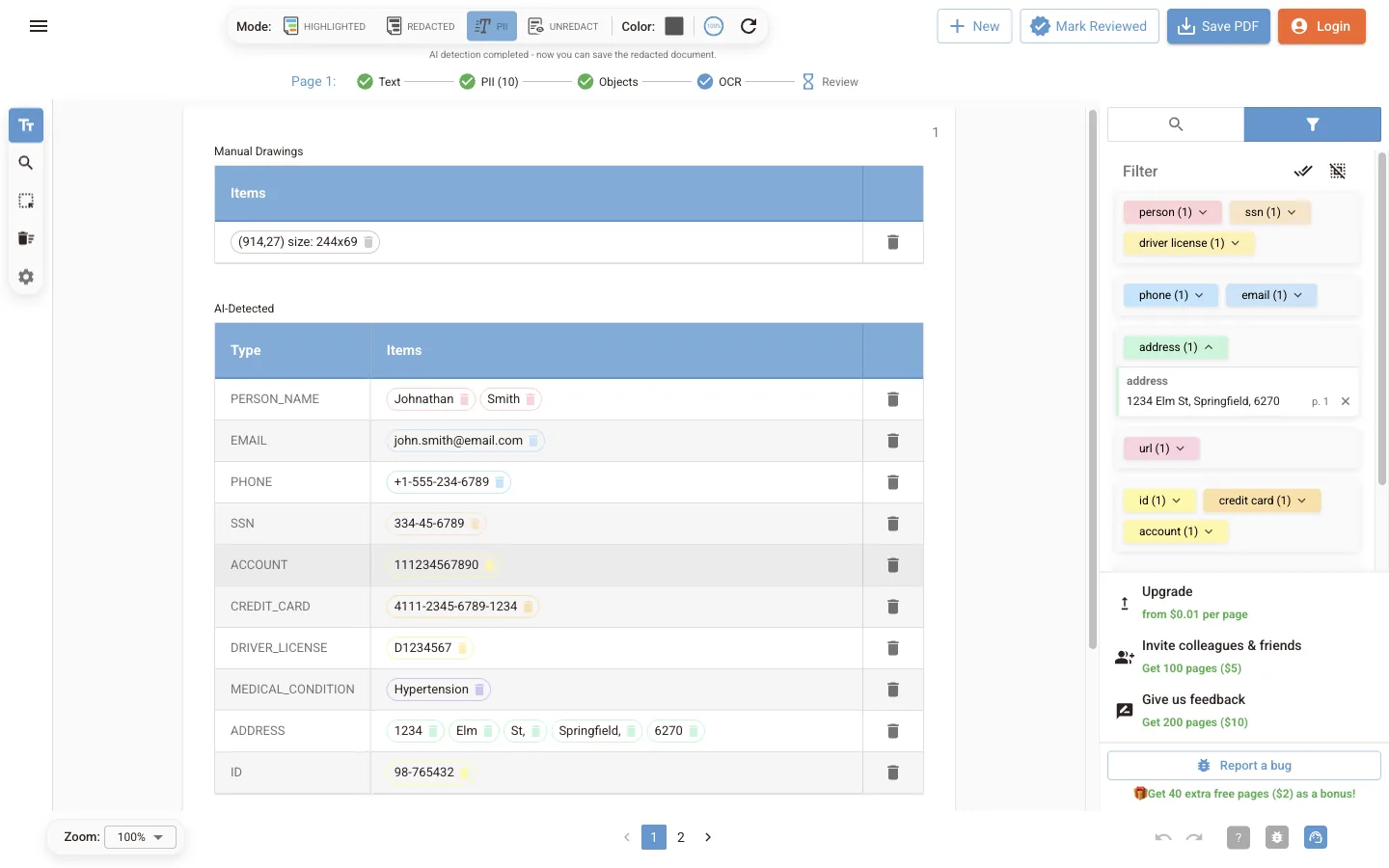
Switch the mode to PII for a table of everything on the current page, split into Manual Drawings, AI-Detected and image-detected items. Each row has the type, the items and a delete button. This is the fastest way to check a long page.
Redact text by selection
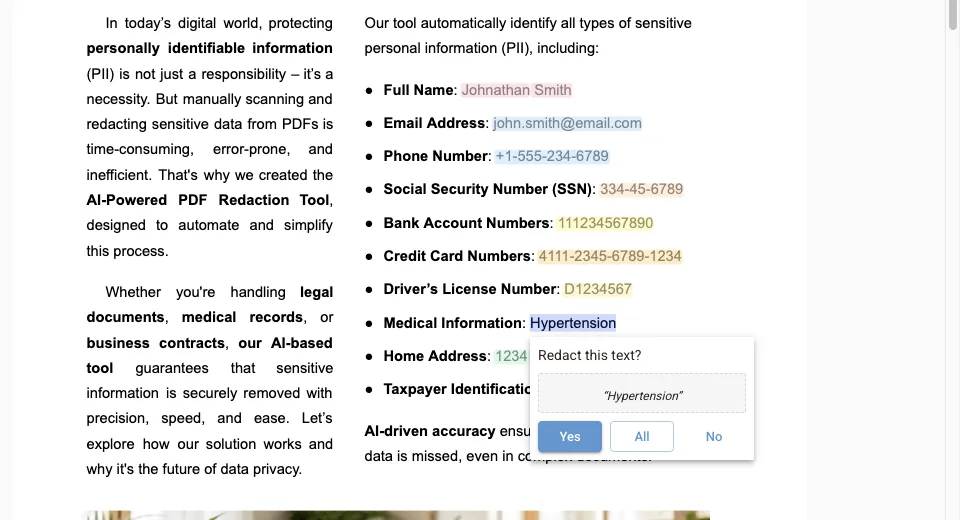
With the Redact Text tool active, select any text on the page. The Redact this text? prompt shows the selection and three choices:
- Yes redacts this occurrence.
- All redacts every occurrence in the document.
- No cancels.
Search and redact
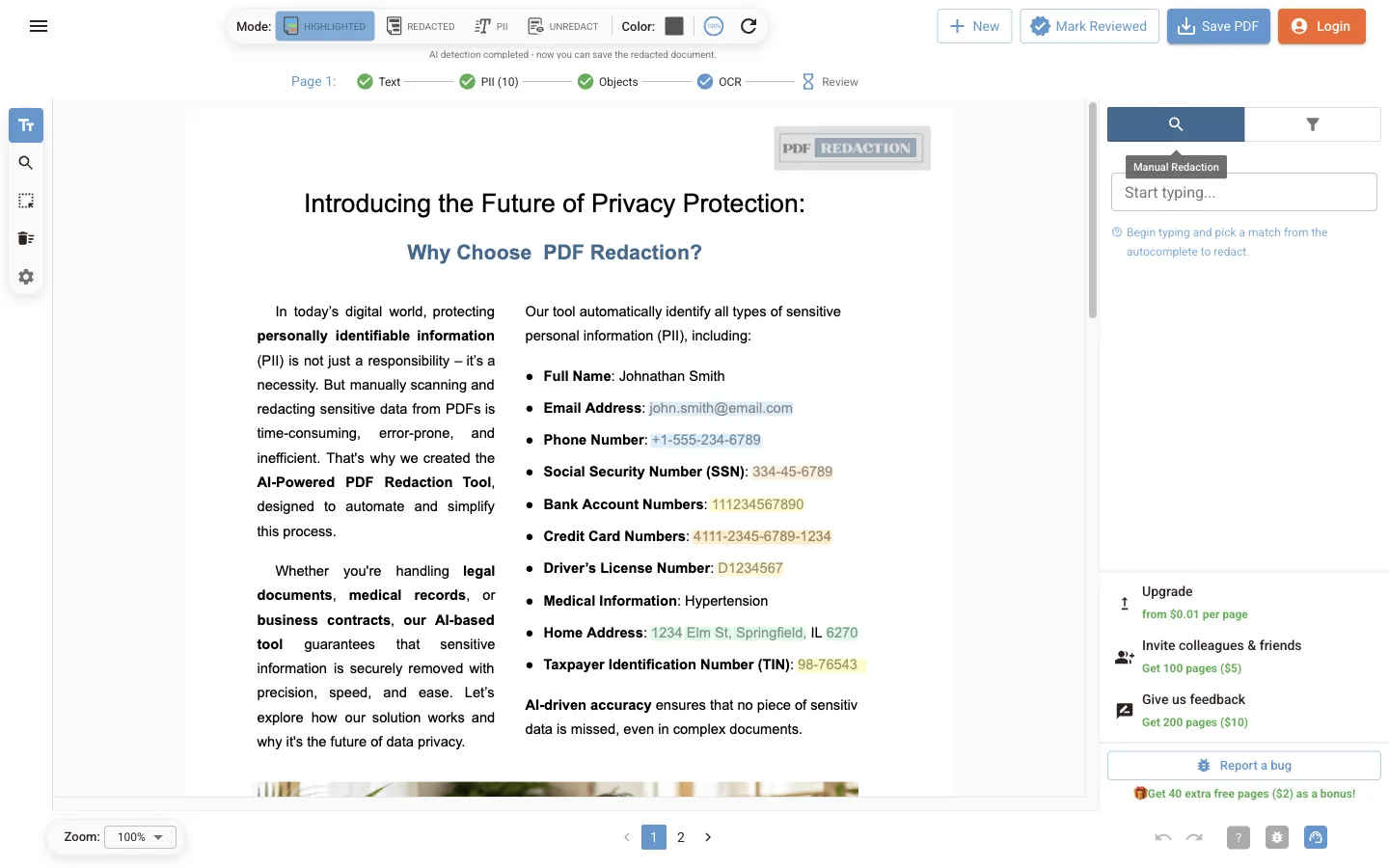
Open the Manual Redaction tab (the magnifier in the right panel, or the Search tool on the left). Start typing and pick a match from the autocomplete list to redact it. Use this for names, case numbers or project codes the AI did not flag.
Draw boxes
Choose Draw or Edit Boxes and drag over any area: a photo, a signature, a logo, a handwritten note. Drag an existing box to move it, or drag its edges to resize it. To delete a box, use Remove Boxes and click it, or select it and press Delete.
Drawn boxes appear under Manual in the filter and under Manual Drawings in the PII table.
Box colour
The Color button in the top bar switches all boxes between grey (default) and white. White is useful when the redacted file will be printed or when black bars would distract from the layout. Either way, the text under the box is removed.
Mark pages as reviewed
Click Review in the status line to mark the current page as checked, or Mark Reviewed in the top bar for the whole document. This is a checklist for you; it does not change the output.
Run detection again
The refresh button in the top bar runs AI detection again on every page, for example after you change the detection settings.
Next steps
Editor interface
Reference for the PDF Redaction Online editor: the Highlighted, Redacted, PII and Unredact modes, the side toolbar, top bar buttons and keyboard shortcuts.
Bad redaction check
Use the editor's Unredact mode to scan a PDF for text left under black boxes or painted invisible, reveal or copy it, and redact it properly in one click.