
Bad redaction check
Use the editor's Unredact mode to scan a PDF for text left under black boxes or painted invisible, reveal or copy it, and redact it properly in one click.
A black rectangle drawn in Word, Preview or a basic PDF editor often hides text without removing it. Anyone can select it and copy it back out. The editor's Unredact mode, labelled Bad redaction check, finds that leftover text in a PDF you received or redacted with another tool.
For background on why redactions fail and other checks you can do by hand, read How to check if a PDF is properly redacted.
Run the check
- Open the PDF in the editor, or go straight to /redaction/?mode=unredact.
- Click Unredact in the mode switcher.
- The panel on the right scans every page and reports what it found.
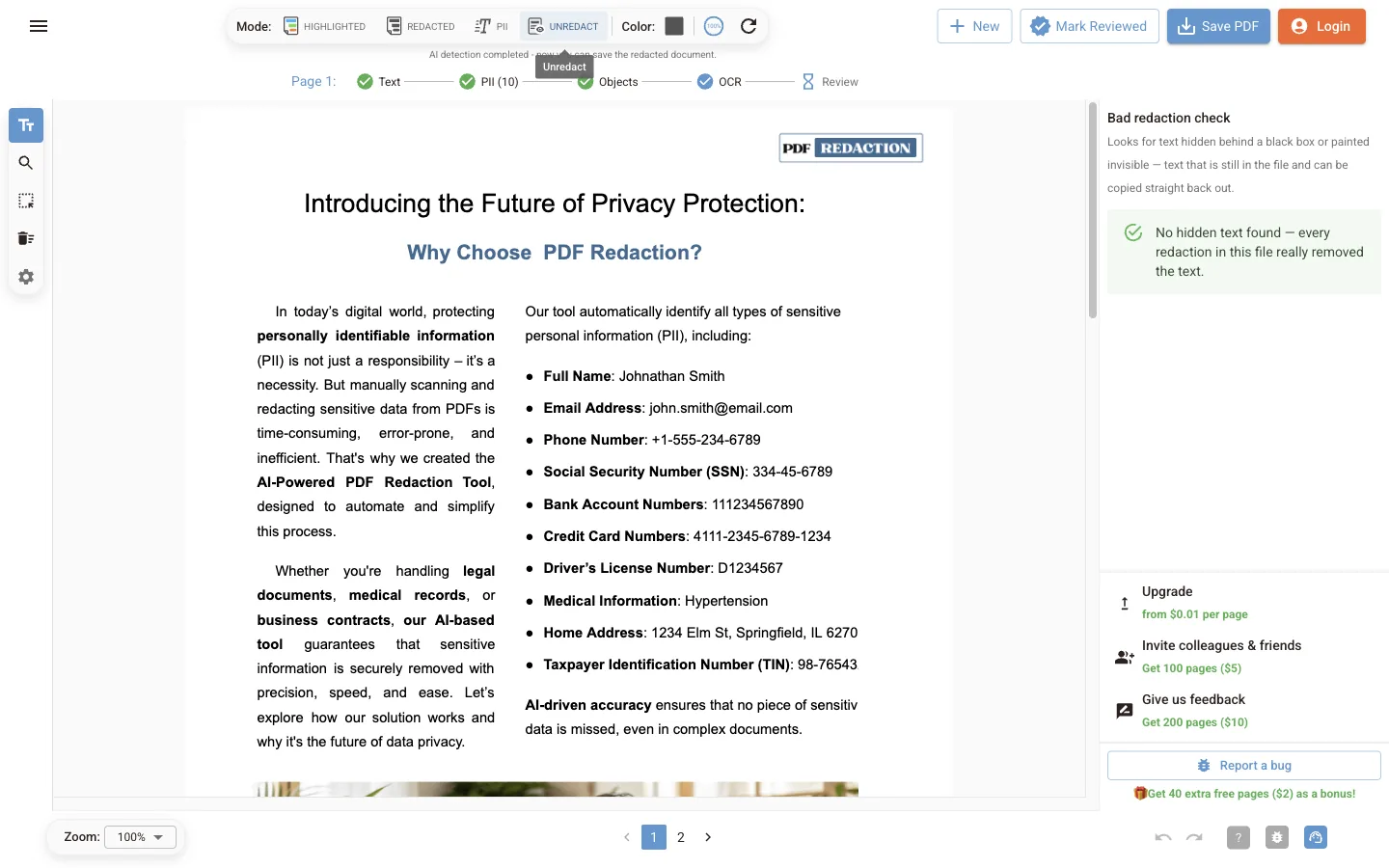
The check looks for two kinds of hidden text:
| Result | Meaning |
|---|---|
| Covered | Text that sits under a filled box or shape. It is still in the file |
| Invisible | Text drawn with no visible colour, for example white on white or a transparent render mode |
If nothing is found, the panel says No hidden text found — every redaction in this file really removed the text.
When hidden text is found
The panel lists each item with its page. You can:
- Reveal hidden text to show it on the page so you can see what leaked.
- Copy hidden text to copy it to the clipboard, for a report or for checking.
- Redact for real to add proper redactions over every hidden item. Then save the file with Save PDF to get a copy where the text is gone.
The check runs in your browser
The bad redaction check reads the PDF's own text layer in your browser. It does not send the file or its text anywhere, whichever detection mode you use.
Next steps
Review and edit redactions
Reference for reviewing findings in the online editor: the PII filter, the findings table, Manual Redaction search, text selection, drawn boxes and review status.
Detection settings
Configure how the online editor finds personal data: Cloud PII, in-browser Local NER models, rule-based patterns, detection thresholds, faces and signatures.