
Cómo tachar texto en negro en un PDF
Tachar texto en negro en un PDF solo protege algo si el texto bajo la caja negra se elimina del archivo. Un rectángulo dibujado con una herramienta de anotación o de formas cubre el texto, pero lo deja seleccionable, buscable y a un clic de ser revelado. Usa en su lugar una herramienta de redacción: la herramienta gratuita PDF Redaction elimina el texto y los píxeles y después dibuja la caja negra (o blanca) como marcador, todo en tu navegador.
Esta guía explica la diferencia, muestra los pasos para la herramienta gratuita, Acrobat y Vista Previa, y enumera las formas en que la gente filtra por accidente texto «tachado».
Caja negra frente a redacción
| Caja negra dibujada | Redacción real | |
|---|---|---|
| Texto bajo la caja | Sigue en el archivo | Eliminado |
| Seleccionar / copiar | Funciona | Nada que seleccionar |
| Buscar | Encuentra el texto | Sin coincidencias |
| Quitar la caja en un editor | Revela el texto | No revela nada |
| Metadatos | Intactos | Vaciados |
Cada año salen a la luz ejemplos públicos: escritos judiciales, publicaciones oficiales y documentos corporativos en los que se eliminó una caja negra o se copió el texto de debajo. La solución siempre es la misma: redactar y después verificar.
Método 1: tachar texto en negro con la herramienta online gratuita
Pasos
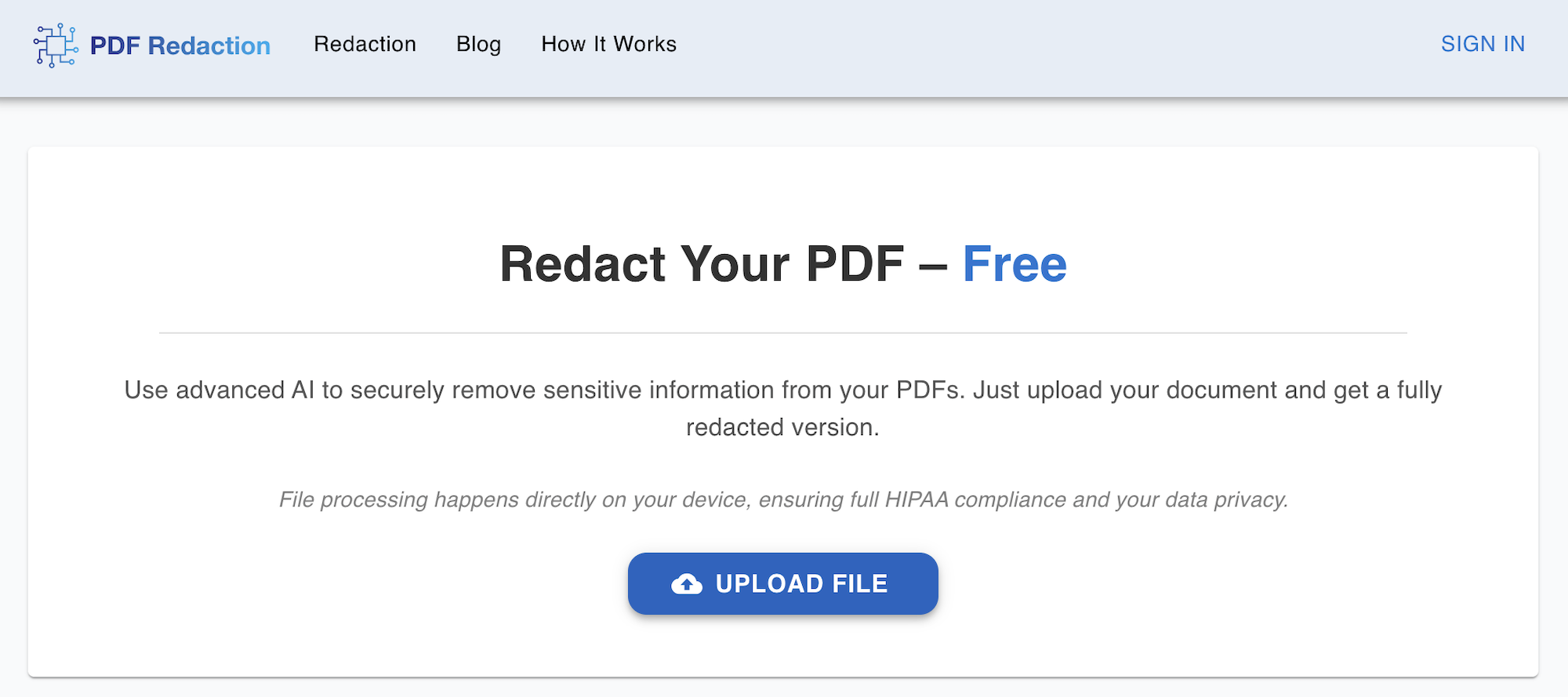
Sube el PDF
Arrastra el archivo a la herramienta gratuita PDF Redaction. Se procesa en tu navegador y no se almacena en ningún servidor.
Marca el texto que quieres tachar
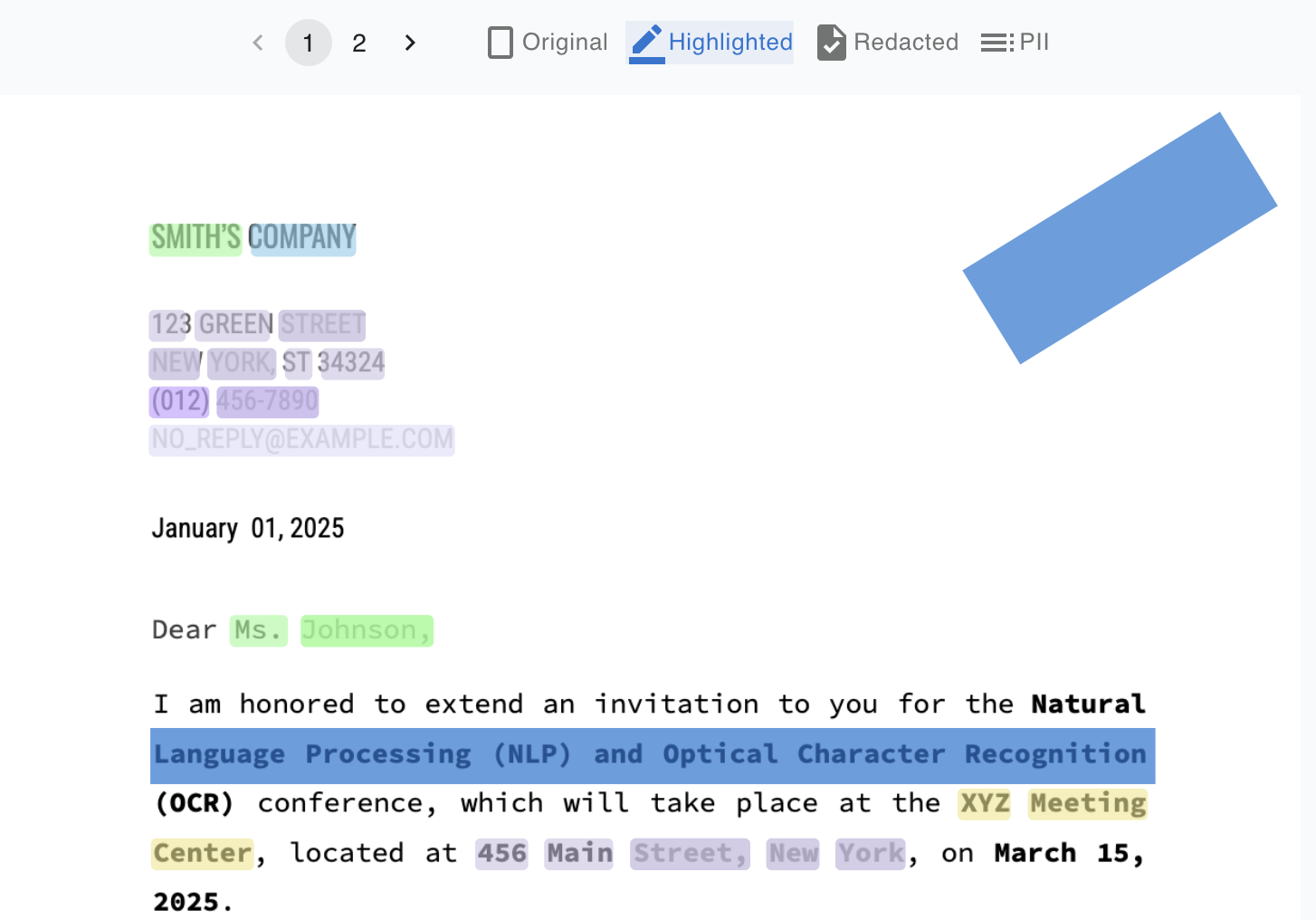
Conserva las marcas de la IA para los datos personales, busca palabras concretas o haz clic y arrastra con la herramienta de rectángulo sobre cualquier zona de texto o imagen.
Elige cajas negras o blancas
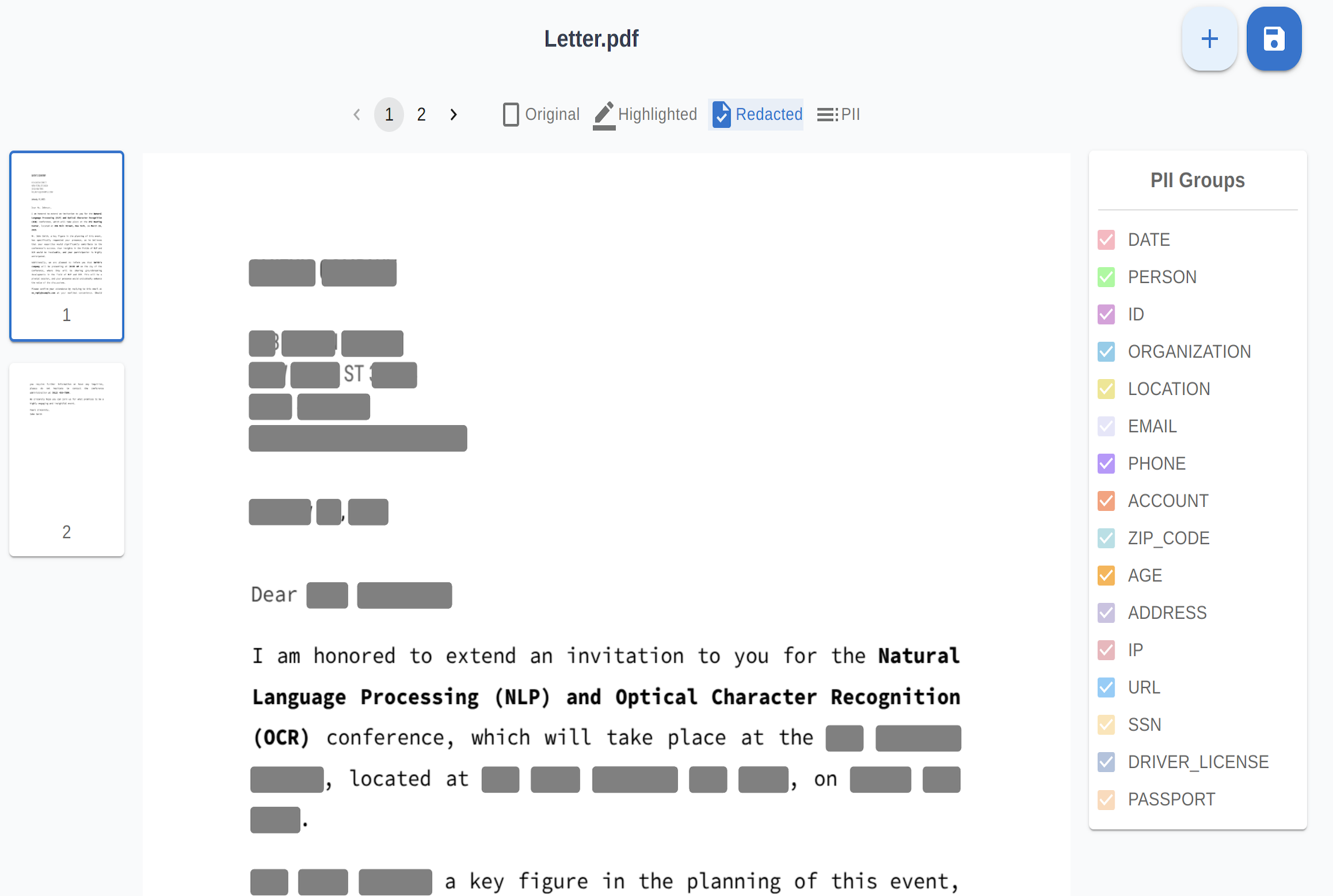
En las opciones de exportación, elige relleno negro para un tachado visible al estilo judicial o relleno blanco para un aspecto limpio en informes. En ambos casos, el contenido de debajo se elimina.
Descarga
Los fragmentos de texto y los píxeles de imagen bajo cada caja se eliminan del archivo, la página se aplana y los metadatos se vacían. La caja que ves es solo un marcador.
Comprueba que la caja negra es real
Pulsa Ctrl+A (Cmd+A) en un visor; nada bajo las cajas debería ser seleccionable. Después abre el archivo en el verificador de redacción gratuito.
El texto se elimina del archivo, no se cubre. Gratis hasta 100 páginas al mes.
Método 2: Adobe Acrobat Pro
- Herramientas → Redactar y después Marcar para redacción (o Buscar texto y redactar).
- Haz clic en Aplicar y confirma. El aspecto por defecto es una caja negra; puedes cambiar el color de relleno o añadir un texto superpuesto como «Redactado» en las propiedades de redacción.
- Ejecuta Depurar documento para eliminar metadatos y contenido oculto.
- Guarda como archivo nuevo.
No uses las herramientas de comentario Rectángulo o Resaltado con relleno negro; son anotaciones y el destinatario puede eliminarlas.
Método 3: Vista Previa de macOS
Vista Previa en macOS Big Sur o posterior tiene una opción real Herramientas → Redactar que dibuja una caja negra y elimina el texto. La antigua forma Rectángulo con relleno negro de la barra de marcado no es una redacción. Vista Previa no puede leer páginas escaneadas y no limpia los metadatos.
Cosas que parecen un tachado pero no lo son
- Un rotulador configurado en negro.
- Una forma en Word, Google Docs™ o PowerPoint exportada a PDF.
- El color del texto cambiado a negro sobre fondo negro.
- Un cuadro de comentario con relleno opaco.
- Una zona de imagen difuminada o pixelada.
Comprueba que tu redacción realmente funcionó
Antes de enviar un PDF redactado, ábrelo en nuestro verificador gratuito para confirmar que no queda texto oculto, capas ni metadatos recuperables.
Resumen rápido
- Sube el PDF a PDF Redaction.
- Marca el texto: marcas de la IA, búsqueda o dibuja cajas.
- Elige relleno negro o blanco.
- Descarga; el contenido se elimina del archivo.
- Comprueba que nada es seleccionable.
Preguntas frecuentes
¿Dibujar un rectángulo negro sobre el texto lo redacta?
No. Un rectángulo, un resaltado o una forma es una anotación colocada encima de la página. El texto de debajo permanece en el archivo y puede seleccionarse, copiarse, buscarse o revelarse eliminando la forma.
¿Cómo tacho texto en negro en un PDF gratis?
Sube el PDF a la herramienta gratuita PDF Redaction, marca el texto, elige relleno negro y descarga. El texto se elimina, no se cubre. No se necesita cuenta para documentos de hasta 25 páginas.
¿Puedo tachar texto en negro en Adobe Reader?
Adobe Reader puede dibujar formas, lo cual no es redactar. Un tachado real requiere la herramienta Redactar de Acrobat Pro u otra herramienta de redacción.
¿Caja negra o caja blanca: cuál debo usar?
Ambas son permanentes cuando el contenido se elimina. Las cajas negras indican claramente que algo se ha redactado, lo que los destinatarios legales y gubernamentales suelen esperar. Las cajas blancas quedan más limpias, pero pueden ocultar el hecho de que hubo una redacción.
¿Cómo tapo texto en blanco en un PDF?
Usa el mismo flujo de redacción y elige relleno blanco al exportar. No uses una herramienta de anotación de «corrector» o «borrador»: esas cubren el texto sin eliminarlo.
¿Se puede recuperar el texto tachado en negro?
Si el texto fue eliminado por una herramienta de redacción, no. Si solo se cubrió, sí, en segundos. Compruébalo con un verificador de redacción antes de compartirlo.
Guías relacionadas
Cómo redactar un PDF permanentemente (no solo con cajas negras)
Redactar un PDF permanentemente elimina el texto, los píxeles de imagen y los metadatos. Aprende a hacerlo gratis o con Acrobat y a demostrar que funcionó.
Cómo redactar texto en un PDF (todas las apariciones, automáticamente)
Redacta texto en un PDF y captura todas las apariciones: detección con IA por tipo de dato, buscar y redactar términos exactos y cajas manuales para el resto.
Cómo comprobar si un PDF está bien redactado (prueba de desredacción)
Comprueba si un PDF está bien redactado con tres pruebas rápidas de texto, capas y metadatos recuperables, y corrige una redacción fallida antes de enviarlo.