
Document library
How the Studio document library works: processing statuses, background processing, saving original and redacted PDFs, sync to cloud and resolving sync conflicts.
My Local Documents on the Studio dashboard lists every PDF you have added. The files and your redactions are stored in this browser (or in the Studio Desktop app), not on the server, until you choose to sync them.
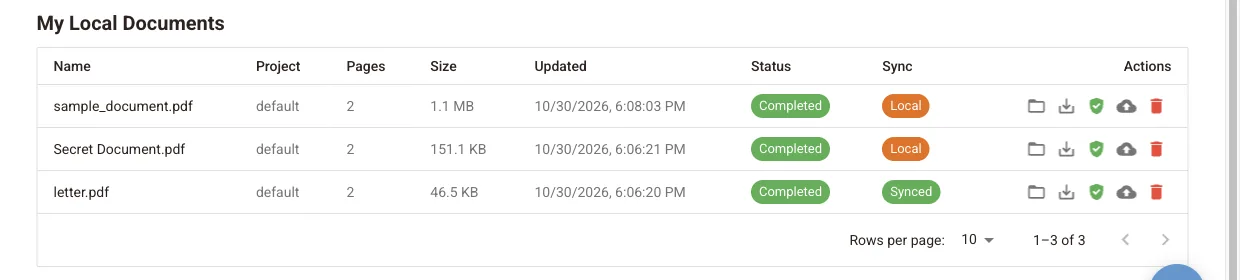
Columns
| Column | Meaning |
|---|---|
| Name, Project, Pages, Size, Updated | The file, the project it belongs to and when it last changed |
| Status | Where the document is in processing, see below |
| Sync | Whether a copy exists on the server, see Sync to cloud |
| Actions | Open, Save original, Save redacted PDF, Sync to cloud, Delete |
Processing status
| Status | Meaning |
|---|---|
| Created | Added and waiting in the queue |
| Processing (n/N) | Being scanned; n of N pages done |
| Completed | All pages scanned; ready to review and save |
| Reviewed | You marked the document as reviewed in the editor |
| Error | Processing failed. Click the status for per-page details, or delete the document and add it again |
| Insufficient Credits | Your plan has no pages left. Upgrade or top up, then process again |
The first document can show Downloading AI models (x%) while the detection models download. This happens once per browser or device.
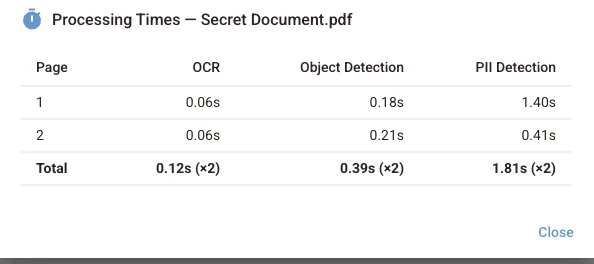
Click a status to see how long OCR, object detection and PII detection took on each page.
Background processing
Drop several PDFs at once and Studio queues them. Documents are processed one at a time, in the background, while you open other documents or move around Studio. If you close the tab or the app, processing stops and resumes the next time you open Studio.
Each processed page counts against your workspace's allowance, see Usage and limits.
Actions
| Icon | Action |
|---|---|
| Folder | Open the document in the editor |
| Download | Save original: download the PDF as you added it |
| Shield | Save redacted PDF: build and download the redacted file. Available when the document is Completed or Reviewed |
| Cloud | Sync to cloud |
| Bin | Delete the document from the library. This cannot be undone |
Sync to cloud
Documents start as Local: they exist only in this browser or app. Sync to cloud uploads the PDF and its redactions to the server of your Studio (pdf-redaction.com for the hosted Studio and Studio Desktop, your own server for a self-hosted install). The status changes to Syncing, then Synced.
Sync a document when you want to open it on another device or share it with your workspace. Documents that stay Local never leave your device.
Sync conflicts
If the server copy changed since your last sync, the status shows Conflict and Studio asks what to do:
- Keep my changes uploads your local version over the server copy.
- Use cloud version replaces your local copy with the server version.
Where documents are stored
The library lives in your browser's storage (IndexedDB). Clearing site data for Studio, or using a private window, removes local documents that were not synced. Each browser and each device has its own library.
Next steps
Quick start
Get started with PDF Redaction Studio: sign in, drop several PDFs onto the dashboard, let them process in the background and open one in the redaction editor.
Install with Docker
Install self-hosted PDF Redaction Studio with Docker Compose: one-line installer or manual setup, license key, first sign-in and the containers it runs.