
Quick start
Get started with PDF Redaction Studio: sign in, drop several PDFs onto the dashboard, let them process in the background and open one in the redaction editor.
This guide takes you from signing in to your first reviewed document in Studio. It works the same in the hosted Studio, a self-hosted install and Studio Desktop.
Sign in
Open studio.pdf-redaction.com, or your own server's address for a self-hosted install. Studio needs an account before you can open a PDF. In the hosted Studio, use the same account as on pdf-redaction.com.
Add documents
On the Dashboard, drag one or more PDFs onto the drop area, or click Open New Document. Each file appears in My Local Documents with the status Created, and Studio starts scanning them one by one.
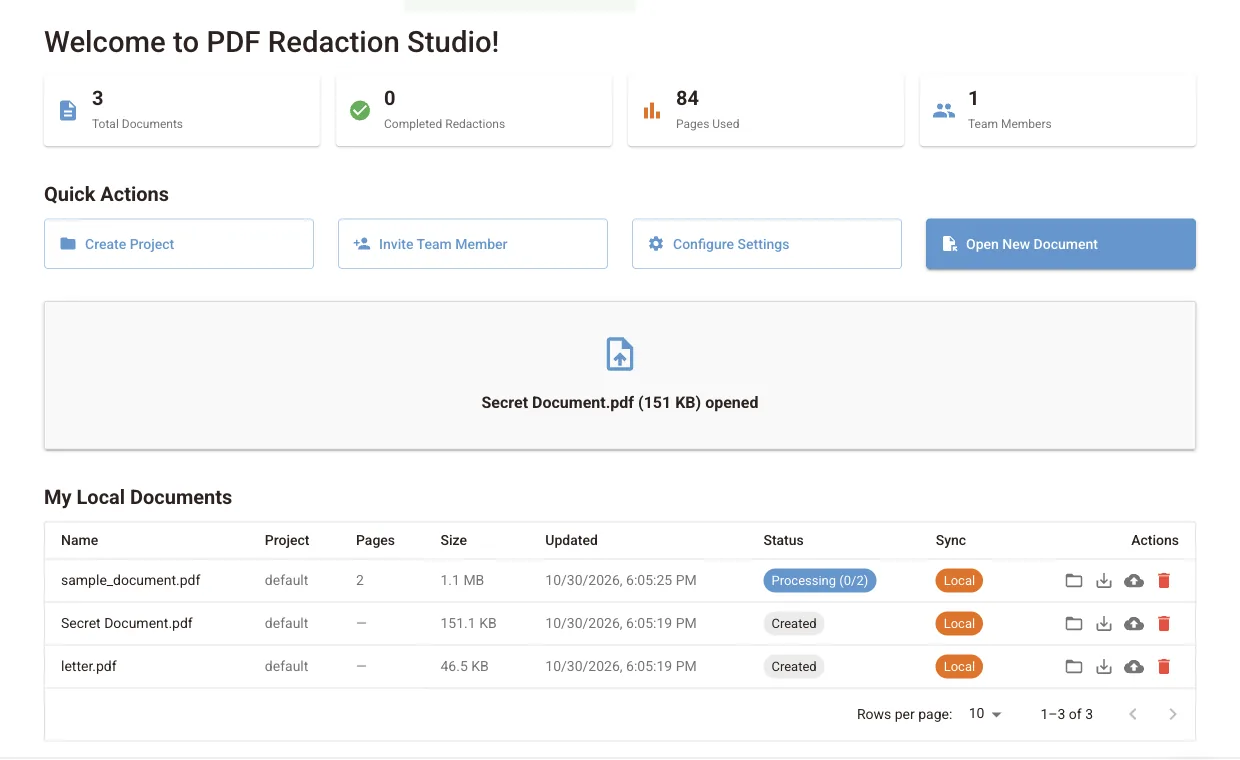
The first document is slower
The first time you process a document, the detection models are downloaded to your device. Later documents start right away, because the models stay cached.
Wait for Completed
When a document's status turns Completed, every page has been scanned. You can keep working in other parts of Studio while the rest are processed.
Open a document in the editor
Click the folder icon (Open) on a row. The document opens in the redaction editor with its findings ready to review. Your edits are saved to the library automatically.
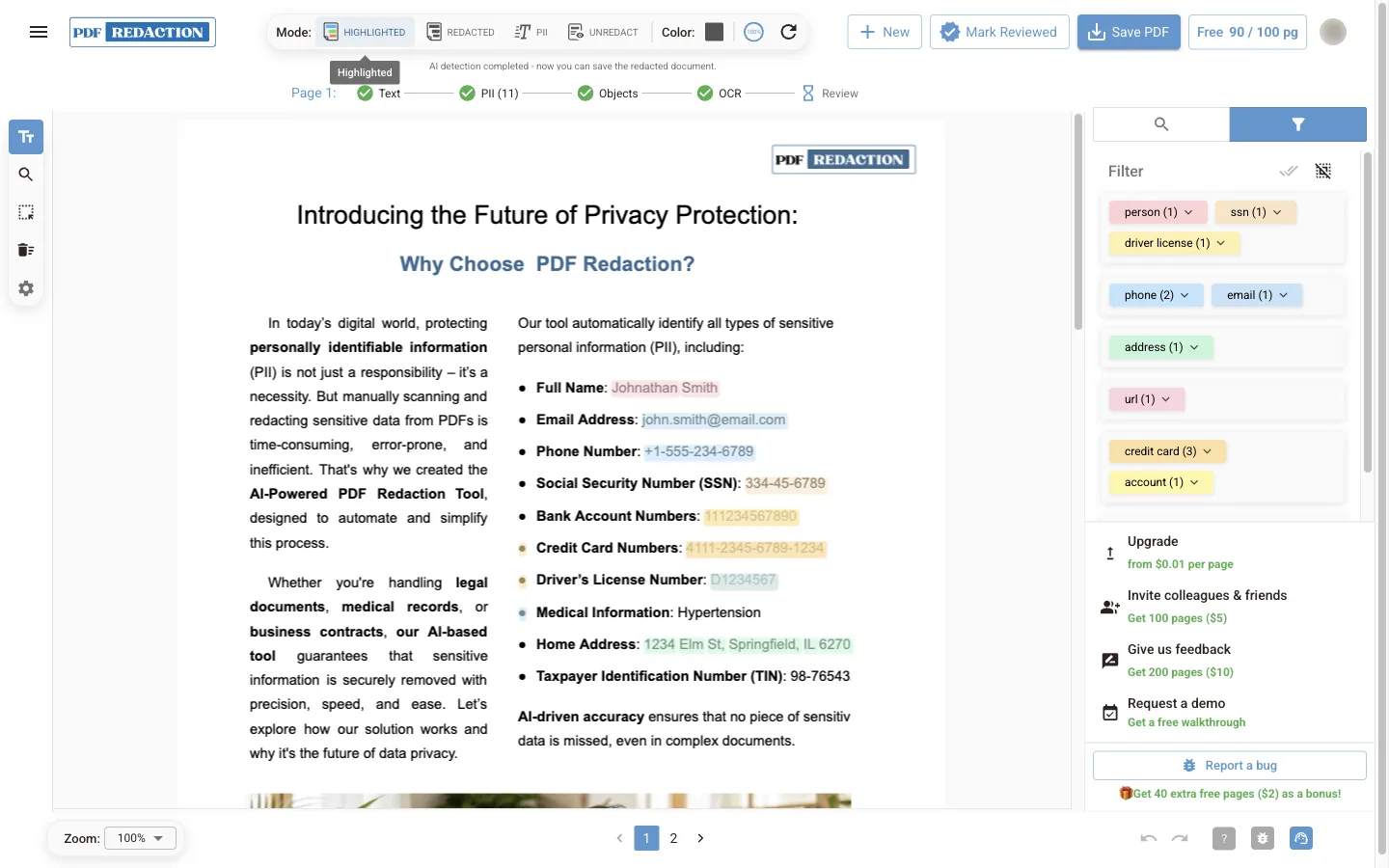
Save the redacted PDF
Click Save PDF in the editor, or use Save redacted PDF (the shield icon) on the document's row in the library.
Next steps
PDF Redaction Studio
User guide for PDF Redaction Studio: the hosted app at studio.pdf-redaction.com and the self-hosted Docker edition, with a document library and batch processing.
Document library
How the Studio document library works: processing statuses, background processing, saving original and redacted PDFs, sync to cloud and resolving sync conflicts.