
OCR settings
How the online editor runs OCR in your browser: automatic OCR for pages without text, reading text inside pictures, choosing the OCR language and CPU threads.
OCR (optical character recognition) turns the pixels of a scanned page into words the detectors can read. In the online editor, OCR runs in your browser. The page image is never sent to a server for OCR. For a step-by-step guide to scanned documents, see How to redact a scanned PDF.
Open Settings → OCR.
General
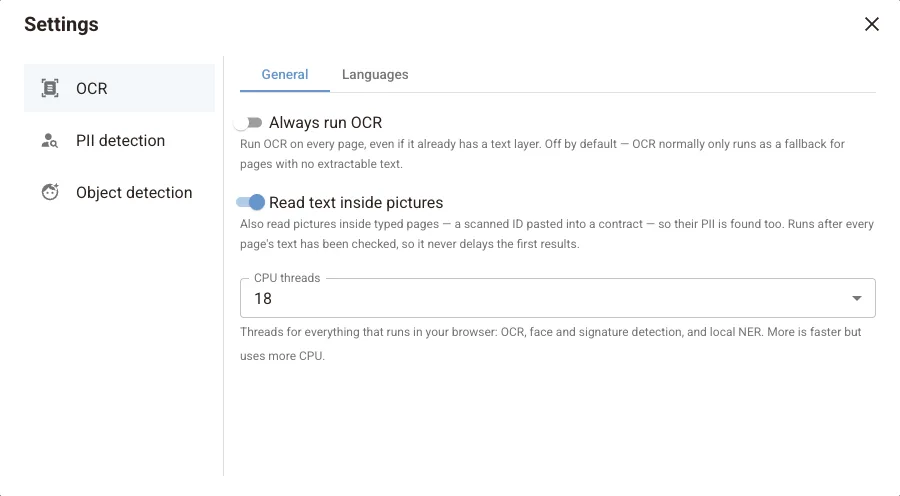
| Setting | Default | What it does |
|---|---|---|
| Always run OCR | Off | Runs OCR on every page, even pages that already have a text layer. Normally OCR only runs on pages with no extractable text. Turn it on when a PDF has a broken or garbled text layer |
| Read text inside pictures | On | Also reads pictures inside typed pages, such as a scanned ID pasted into a contract, so their personal data is found too. It runs after every page's text has been checked, so it never delays the first results |
| CPU threads | Depends on your device | Threads used by everything that runs in your browser: OCR, face and signature detection, and Local NER. More is faster but uses more CPU |
Languages
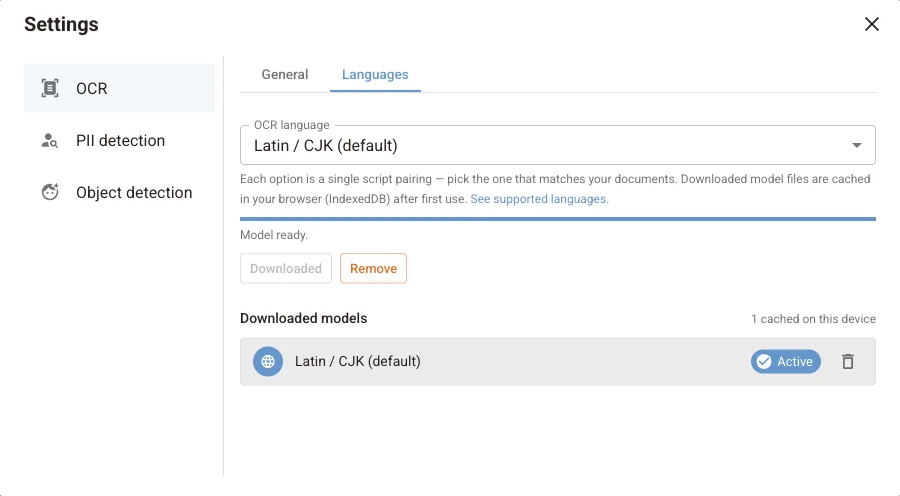
Each OCR language option is a language pack for one script pairing, such as Latin / CJK (the default) or Latin + Cyrillic. Pick the one that matches your documents. The full list of languages each option covers is in OCR language support.
The model downloads on first use and is cached in your browser. Downloaded models lists the models stored on this device. Click the bin icon to remove one and free space.
Check OCR results
OCR can misread low-contrast, handwritten or skewed text. After detection, check scanned pages in Highlighted mode and draw boxes over anything that was missed.
Next steps
Detection settings
Configure how the online editor finds personal data: Cloud PII, in-browser Local NER models, rule-based patterns, detection thresholds, faces and signatures.
Account and workspaces
Manage your PDF Redaction account: sign-in options, profile and notifications, support tickets, workspaces, team members, projects and your document list.