
Plans and billing
How to change your PDF Redaction plan, add or update a payment method, top up page credits, edit billing details, download invoices and cancel a subscription.
Billing belongs to a workspace. Your Personal workspace has its own plan, and every team workspace you create has a separate one. To see what each plan includes and costs, go to the Pricing page. This page explains how to manage a plan once you have chosen it.
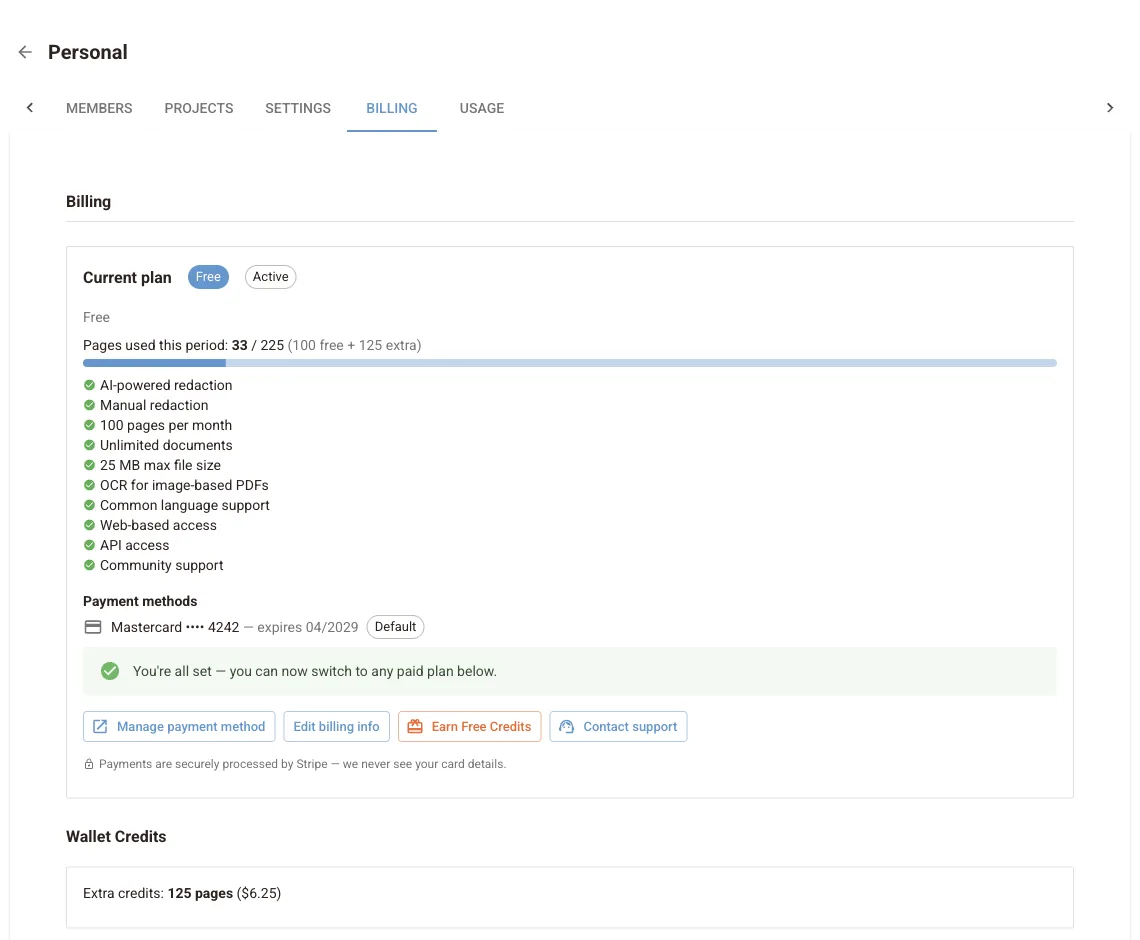
Open Manage workspaces, pick the workspace and choose the Billing tab. For your Personal workspace, Profile → Billing opens the same page.
Plans at a glance
| Plan | Pages included each month | Pages per document | File size per document |
|---|---|---|---|
| Free | 100 | 25 | 25 MB |
| Starter | 100, then pay per extra page (card required) | 100 | 50 MB |
| Pro | 500, then pay per extra page | 100 | 50 MB |
| Pro Plus | 4,500, then pay per extra page | 100 | 50 MB |
| Enterprise | Custom, with on-premise deployment, contact us | Custom | Custom |
The per-document limits apply to you as a person: they rise to 100 pages and 50 MB while you own at least one workspace on a paid plan. Current prices and overage rates are on the Pricing page. Prices may be shown in euros in the EU; you are always billed in US dollars.
Change your plan
- In Billing, find Change plan.
- If there is no card on file, click Add payment method. You are sent to a secure Stripe checkout to add a card.
- Choose Switch to plan name and confirm.
The switch takes effect immediately. To check that your card is valid, it is briefly authorised for a small amount, which is not charged. Your page counter does not reset when you change plans, see Usage and limits.
Payments are handled by Stripe
Card details are entered on Stripe and never reach our servers.
Payment methods and billing details
- Manage payment method opens the billing portal, where you can add, replace or remove cards.
- Edit billing info stores the name, legal name, tax ID, address and e-mail printed on your invoices.
Wallet credits and top-ups
On Starter, extra pages can be bought in advance. In Top Up Credits, enter the number of pages and click Top Up. Credits are used automatically when your included pages run out. They never expire and roll over to the next month. Wallet Credits shows your current balance.
You can also earn free pages by inviting colleagues, leaving feedback or reporting a bug. See Earn credits.
Invoices
The Invoices table lists every invoice with its number, date, amount and status (Paid, Pending or Failed). Click Download for the PDF.
Cancel or downgrade
Switch the workspace to the Free plan in Change plan, or cancel from the billing portal under Manage payment method. The refund policy is on the Pricing page. For any billing question, use Contact support on the Billing tab.
Next steps
Account and workspaces
Manage your PDF Redaction account: sign-in options, profile and notifications, support tickets, workspaces, team members, projects and your document list.
Usage and limits
How the online editor counts pages against your monthly allowance, when the period resets, where to see your usage, and the size and page limits per document.