
Editor interface
Reference for the PDF Redaction Online editor: the Highlighted, Redacted, PII and Unredact modes, the side toolbar, top bar buttons and keyboard shortcuts.
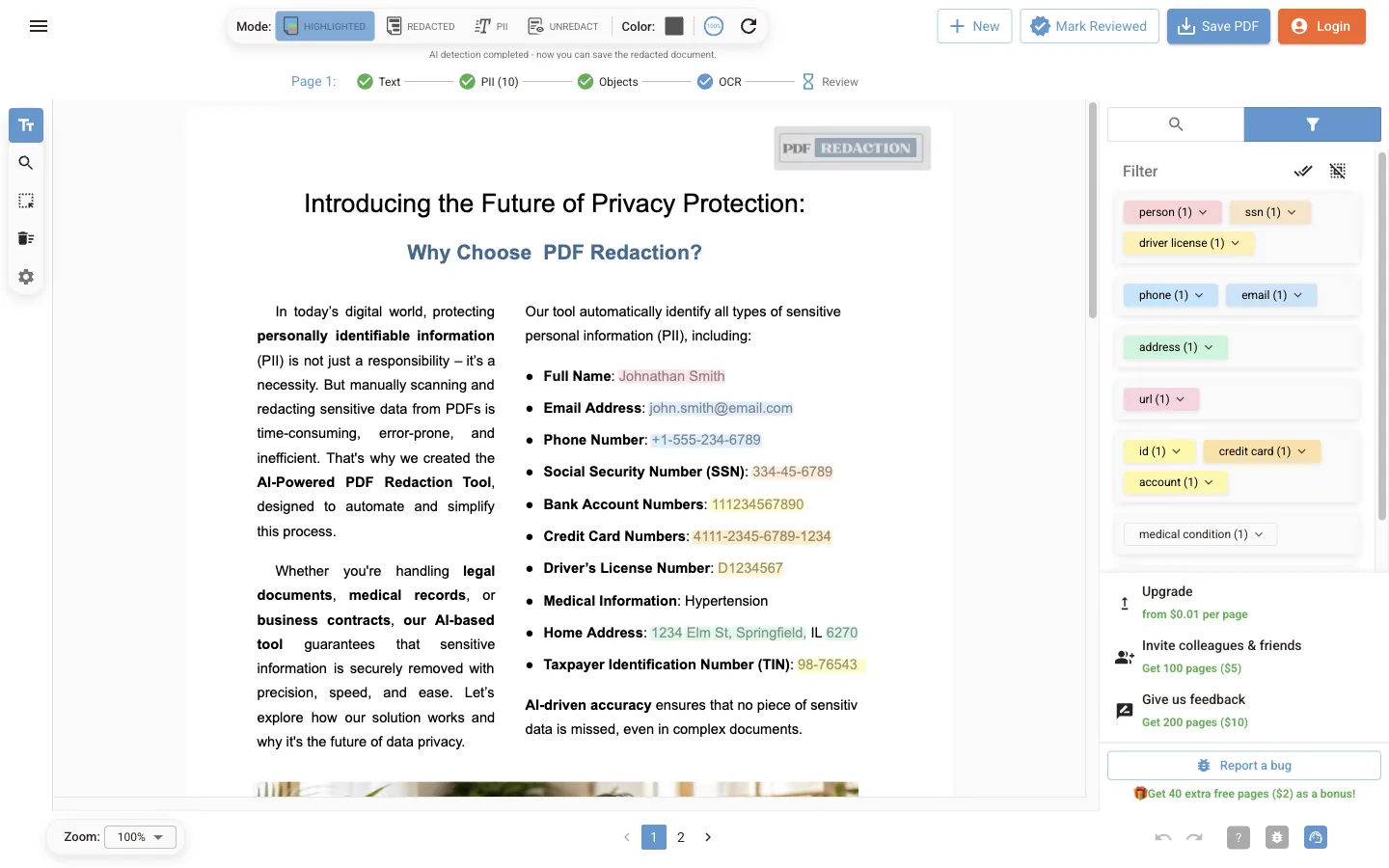
The editor has four areas:
- Top bar: view mode, box colour, detection progress and the document buttons.
- Left toolbar: the active tool and Settings.
- Document: the pages, with the findings drawn over them.
- Right panel: Manual Redaction (search) and PII Filter tabs.
View modes
Switch modes with the Mode buttons in the top bar.
| Mode | What it shows | Use it to |
|---|---|---|
| Highlighted | The original page with each finding coloured by type | Review what was found |
| Redacted | The page as it will be saved, with solid bars | Check the final result before saving |
| PII | A table of findings per page: drawn boxes, AI-detected and image-detected items | Scan long documents quickly and delete rows |
| Unredact | Text hidden under existing boxes or painted invisible in the PDF | Check a file that was redacted elsewhere |
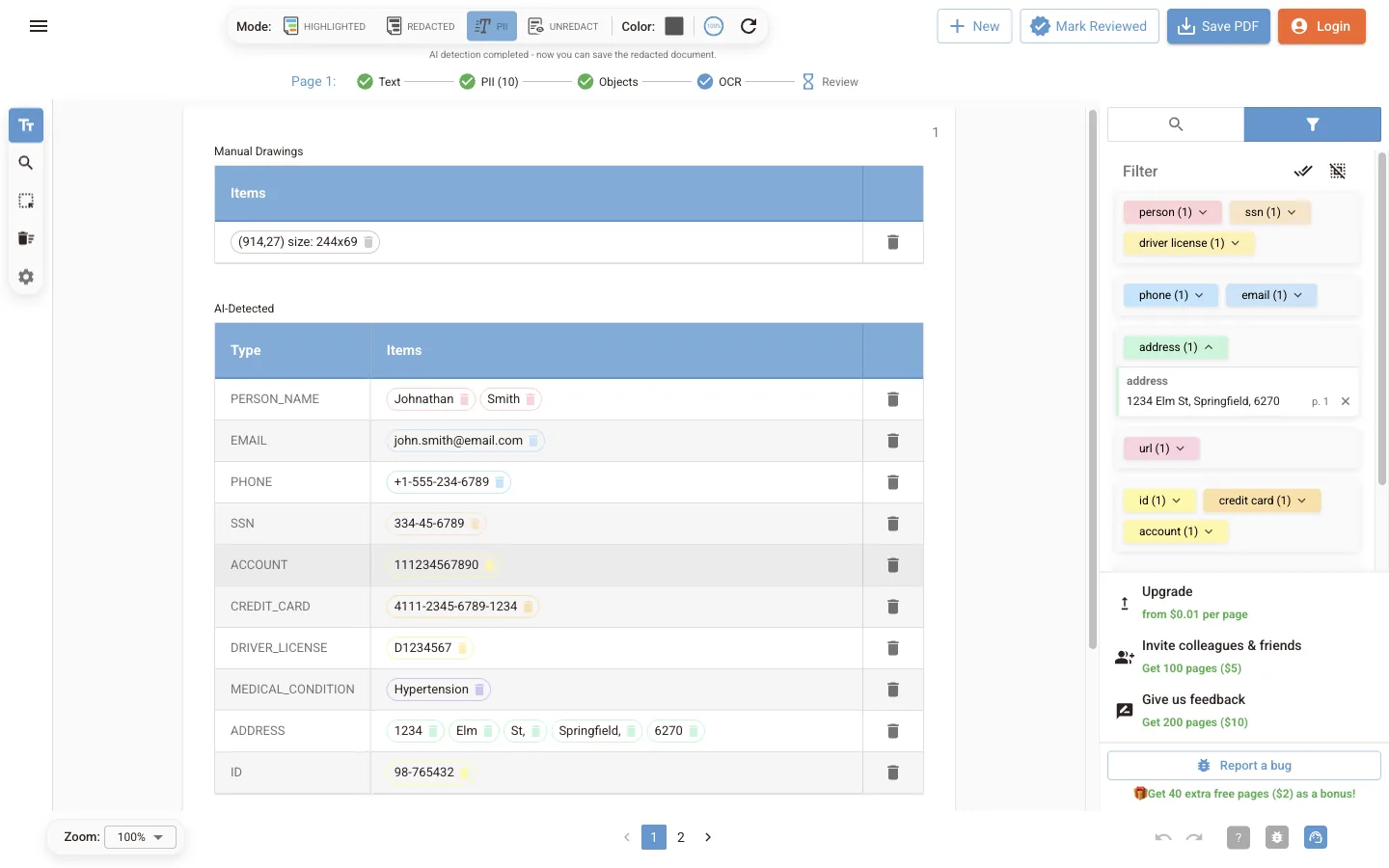
Tools
| Tool | What it does |
|---|---|
| Redact Text | Select text on the page. A Redact this text? prompt offers Yes, All (every occurrence in the document) or No |
| Search | Opens the Manual Redaction tab to find a word or phrase and redact matches |
| Draw or Edit Boxes | Drag to draw a box over any area. Drag an existing box to move or resize it |
| Remove Boxes | Click a box to delete it |
| Settings | Opens the detection and OCR settings |
Top bar
| Control | What it does |
|---|---|
| Color | Switches the redaction box colour between grey (default) and white |
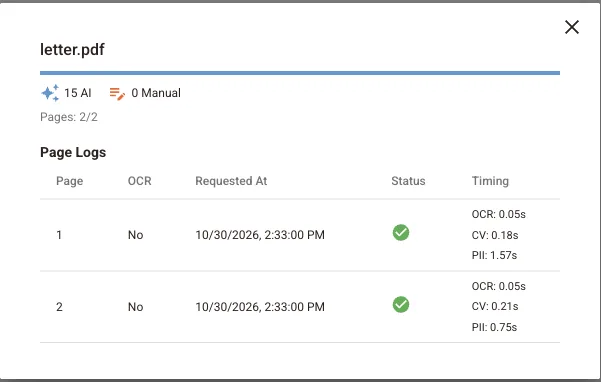
| Progress ring | Shows detection progress. Click it for the document details and per-page log |
| Refresh | Runs PII detection again on the document |
| New | Opens another PDF |
| Mark Reviewed | Marks the whole document as reviewed |
| Save PDF | Builds and downloads the redacted file |
Under the top bar, the status line for the current page shows each stage: Text, PII (with the number of findings), Objects, OCR and Review. Click Review to mark that page as checked.
The details dialog lists how many items were found by AI and added by hand, plus a log with the OCR, image-detection and PII timing for each page. Pages that failed have a retry button.
Bottom bar
- Zoom sets the page zoom.
- The page numbers move between pages.
- Undo and Redo step through your edits.
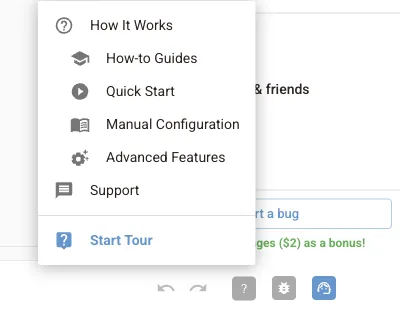
- ? opens the help menu, with links to the guides and Start Tour, an interactive walkthrough of the editor.
- The support button opens a chat with the support team.
Keyboard shortcuts
| Shortcut | Action |
|---|---|
| Ctrl + Z (⌘ + Z on Mac) | Undo |
| Ctrl + Shift + Z (⌘ + Shift + Z on Mac) | Redo |
| Delete or Backspace | Delete the selected box |
| Esc | Clear the text selection |
Interface language and theme
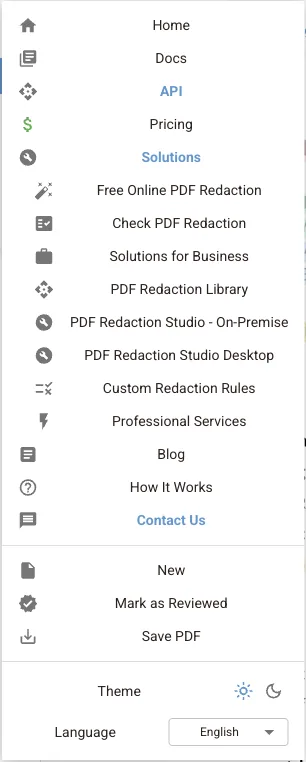
The main menu (☰, top left) has links to the rest of the site, the New, Mark as Reviewed and Save PDF actions, a Theme switch for light and dark mode, and a Language selector: English, Deutsch, Español or Polski.
Next steps
Open and download files
Ways to open a PDF in the online editor (drag and drop, Google Drive, Dropbox, sample file), unlock password-protected PDFs and save the redacted result.
Review and edit redactions
Reference for reviewing findings in the online editor: the PII filter, the findings table, Manual Redaction search, text selection, drawn boxes and review status.