
How to Remove Metadata from a PDF
To remove metadata from a PDF, either rebuild the file so nothing from the original is carried over, or clear the fields in Acrobat Pro and run Remove Hidden Information, or strip them with exiftool and rewrite the file with qpdf. Then open the document properties to confirm the author, title and keywords are empty before you send it.
Metadata is the part of a PDF nobody reads on screen and everybody can read in two clicks. A contract drafted from a template may still name the colleague who wrote the first version. A report exported from Word often carries the author's Windows user name, a working title such as "Draft for legal – do not send", and the name of the app and version that produced it. Older files sometimes hold the full path of the folder on a server, and the XMP section can keep an edit history.
What a PDF can carry besides the page
| Where | What it can reveal |
|---|---|
| Document info | Title, author, subject, keywords, creator app, producer, created and modified dates |
| XMP metadata | The same fields again, plus editing history and document IDs |
| Attachments | Whole files embedded in the PDF, such as the source spreadsheet |
| Form fields | Values typed into a form, even when the field is hidden |
| Comments | Sticky notes and replies with the reviewer's name |
| Bookmarks | Headings that can quote removed sections |
| Hidden layers | Content switched off in the viewer but still in the file |
| JavaScript | Scripts that run when the file is opened |
Which method should you use?
| PDF Redaction export | Acrobat Pro | exiftool + qpdf | |
|---|---|---|---|
| Removes document info and XMP | Yes | Yes | Yes |
| Removes attachments, comments, layers, scripts | Yes | Yes, with Remove Hidden Information | No, metadata only |
| Keeps the original page content | No, pages are rebuilt | Yes | Yes |
| Redacts text and images too | Yes | Yes | No |
| Cost | Free up to 100 pages/month | Subscription | Free, command line |
Method 1: PDF Redaction (recommended when you are redacting anyway)
PDF Redaction has no separate metadata button, and it does not need one. When you download, it writes a brand-new PDF from the rendered pages and their text layer. None of the original document info, XMP, attachments, form fields, bookmarks, comments, JavaScript or hidden layers is copied into it. The new file does have its own producer entry and creation date, because every PDF has them, but they describe the export, not you or your organisation.
That makes it the simplest route when you are already removing names, numbers or faces: one download cleans the page and the hidden data together. If you only want the metadata gone, open the file, click Redact none so no detected item is redacted, and download. The pages look the same; they are now images with a searchable text layer instead of the original vector content, and the file size may change. A free account is needed to download.
Steps
See what the file is carrying
Open the PDF in a viewer and look at File → Properties (Ctrl+D or Cmd+D in Acrobat Reader). Note the author, title, subject, keywords and the app that made the file. Check the attachments and comments panels too.
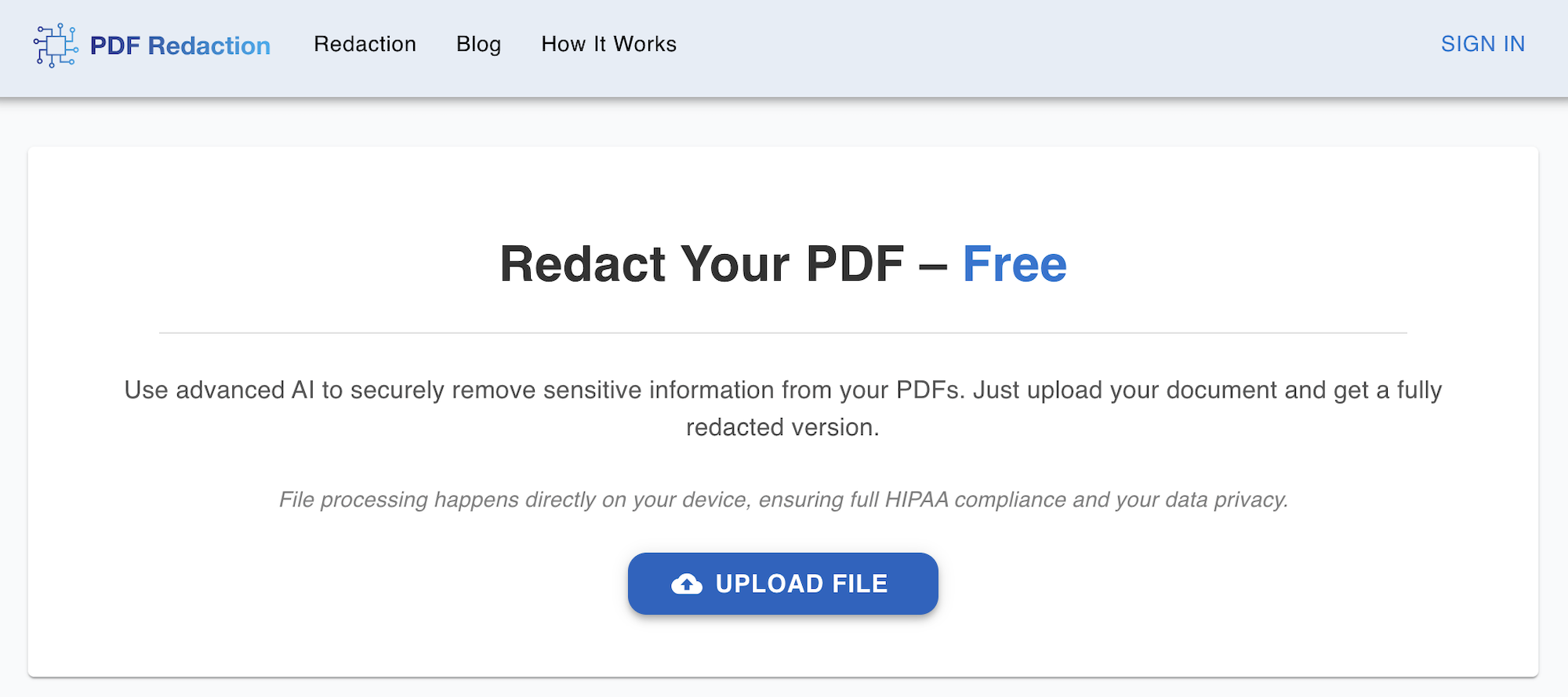
Open the PDF in PDF Redaction
Drop the file onto the PDF Redaction page. It opens in your browser and is not uploaded.
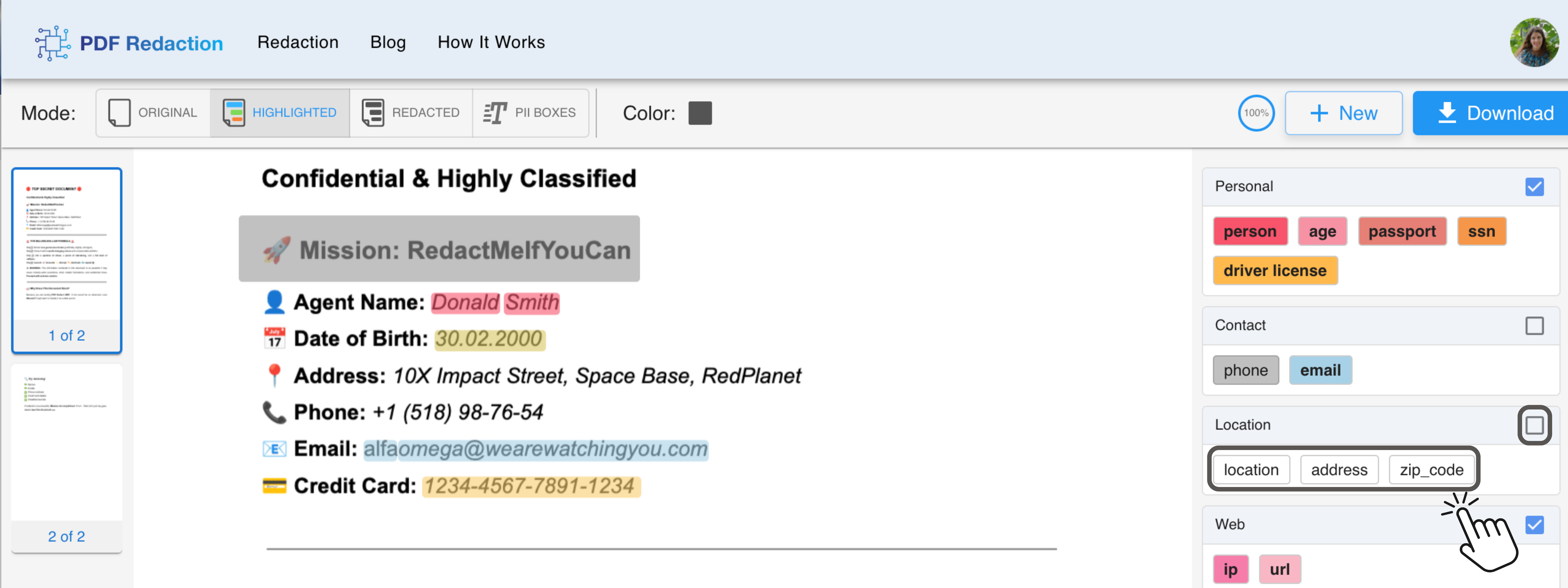
Redact the page content, or nothing at all
Review the AI highlights and redact what must go. If you only want clean metadata, click Redact none in "What to redact" so the visible page stays as it is.
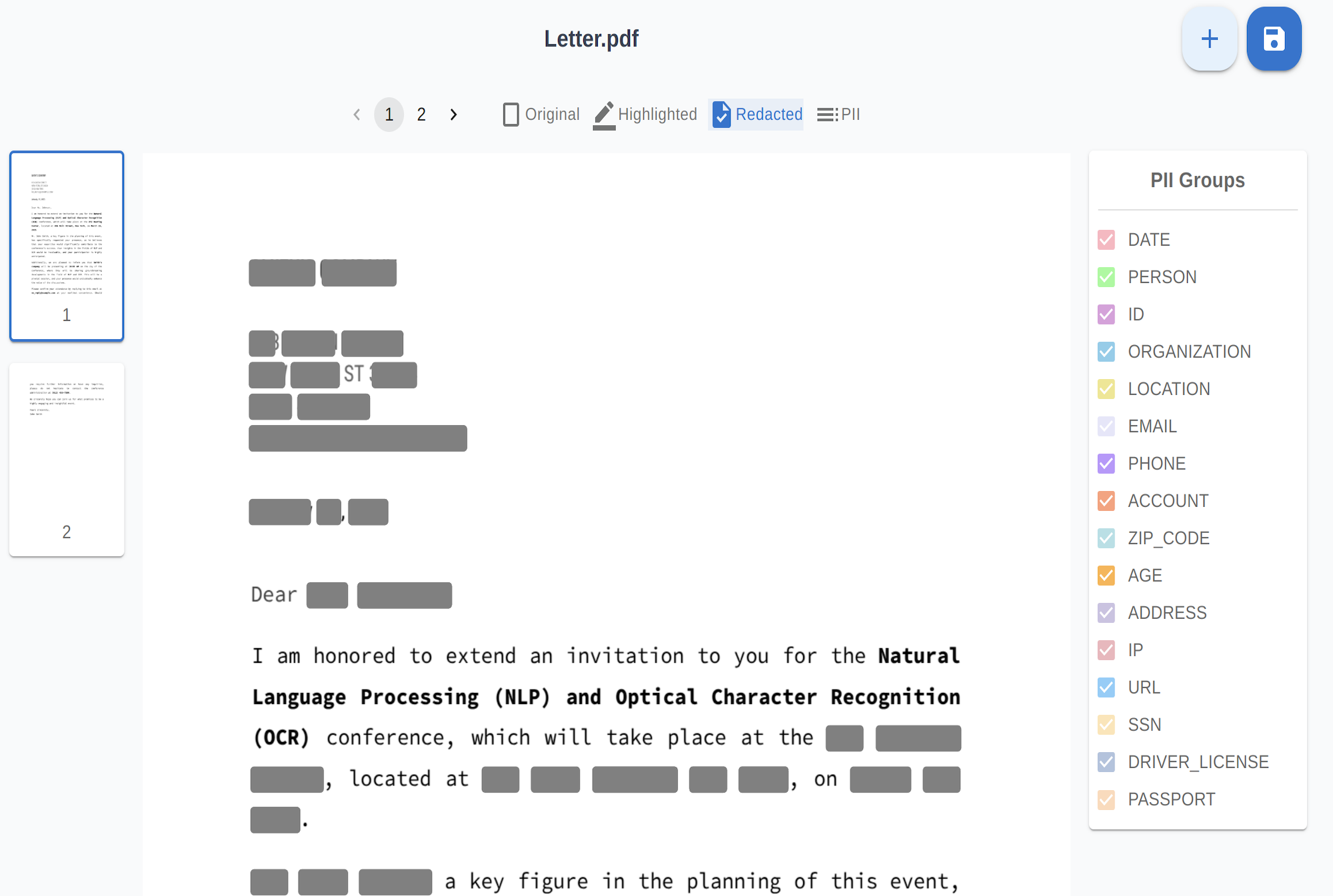
Download the rebuilt PDF
The download is a new PDF built from the page images and their text. Document info, XMP, attachments, form fields, bookmarks, comments, scripts and hidden layers from the original are not copied into it.
Check the properties of the new file
Open File → Properties again. The author, title and keywords fields are empty. The producer and creation date now describe the new file, not your original.
Files open in your browser. Free for up to 100 pages per month.
Method 2: Adobe Acrobat Pro
- Open File → Properties → Description and clear Title, Author, Subject and Keywords. Click Additional Metadata to see the XMP fields.
- Open the Redact tool and choose Remove Hidden Information. Tick metadata, attachments, comments, form data, hidden layers, bookmarks and scripts, then remove them.
- Or run Sanitize Document, which removes all of these in one go.
- Save under a new file name.
Clearing the Description fields alone is not enough, because the XMP packet can still hold the old values. The free Acrobat Reader can show the properties but cannot edit or remove them.
Method 3: exiftool and qpdf on macOS or Linux
exiftool can blank every metadata field in one command:
exiftool -all:all= report.pdf
qpdf --linearize report.pdf report-clean.pdf
The second step matters. exiftool edits a PDF by appending an update to the end of the file, so the old metadata stays inside and its own documentation notes that the change can be reversed. Rewriting the file with qpdf drops the old revision. Delete the report.pdf_original backup that exiftool leaves behind. This route clears metadata only; attachments, comments and form data stay in the file.
What doesn't work
- Windows File Properties. "Remove Properties and Personal Information" targets Office files and images and is not a reliable way to clean a PDF's internal fields.
- macOS Preview. The Inspector shows some of the document info but offers no way to edit or remove it.
- Renaming the file. The name on disk has nothing to do with the title and author stored inside.
- Online "metadata viewers". Many only display the fields; check what a tool actually does before you trust its output.
Check that your redaction actually worked
If you also redacted text, open the file in our free checker to confirm nothing can be recovered from under the boxes. Then check the metadata fields as described below.
The checker looks at the page content, not at metadata, so look at the fields yourself: open File → Properties in a viewer, or run exiftool report-clean.pdf or pdfinfo report-clean.pdf. For the full set of checks on a redacted file, see How to check a PDF redaction, and for why metadata belongs in every redaction, see How to permanently redact a PDF.
Quick summary
- Look at File → Properties to see what the PDF carries.
- Open it in PDF Redaction and redact what must go, or click Redact none.
- Download the rebuilt copy.
- Or clear the fields in Acrobat Pro and run Remove Hidden Information, or use exiftool then qpdf.
- Open the properties of the new file to confirm they are empty.
Frequently Asked Questions
What is PDF metadata?
Information stored in the file rather than on the page: the document info fields (title, author, subject, keywords, creator app, producer, creation and modification dates) and an XMP packet that can repeat them and add editing history. In a wider sense, attachments, form data, comments, bookmarks and hidden layers also travel with the file without being seen.
How do I remove the author name from a PDF?
In Acrobat Pro, clear the Author field under File → Properties → Description, then run Remove Hidden Information so the XMP copy goes too. With exiftool, run exiftool -Author= file.pdf and rewrite the file with qpdf. Or download a rebuilt copy from PDF Redaction, which carries no author at all.
Can I remove PDF metadata without changing the pages?
With Acrobat Pro or exiftool plus qpdf, yes: the page content is untouched. PDF Redaction rebuilds every page as an image with a searchable text layer, which is what makes its redactions safe, so the file looks the same but is no longer the original vector page.
Does saving a copy or Save As remove metadata?
Usually not. Most editors copy the document info and XMP into the new file and update only the modification date. Some even add your name as the author of the copy.
Is metadata removed from every page or from the whole file?
Document metadata belongs to the whole file, so it is removed once. Images inside the PDF can carry their own EXIF data, such as camera model or GPS position, which a rebuild that re-renders the pages also drops.
Why does Windows not let me remove PDF properties?
The "Remove Properties and Personal Information" link in the Details tab is made for Office documents and photos. For PDFs it often shows nothing to remove, and it does not reach the XMP data inside the file, so use one of the methods in this guide instead.
Related guides
How to Permanently Redact a PDF (Not Just Black Boxes)
Permanently redact a PDF by deleting text, image pixels and metadata. See what a real redaction changes, how to do it free or in Acrobat, and how to verify.
How to Check If a PDF Is Properly Redacted (Unredact Test)
Three quick tests to check whether a redacted PDF still hides recoverable text, layers or metadata, plus how to fix a failed redaction before you share the file.
How to Redact Faces, Photos and Signatures in a PDF
Redact faces, photos and signatures in a PDF with in-browser face and signature detection, and why a solid box is safer than blurring or pixelating a face.