
Phrase lists
Save names, case numbers and other words to reusable phrase lists, apply a list to a PDF in one click, auto-apply it to every new document and sync it across devices.
A phrase list is a named set of words and phrases you redact again and again: client names, a case number, a project code, an internal email address. Save them once, then redact all of them in any document with one click, or let the editor do it automatically for every document you open.
Phrase lists live in the Manual Redaction tab (the magnifier in the right panel, or the Search tool on the left).
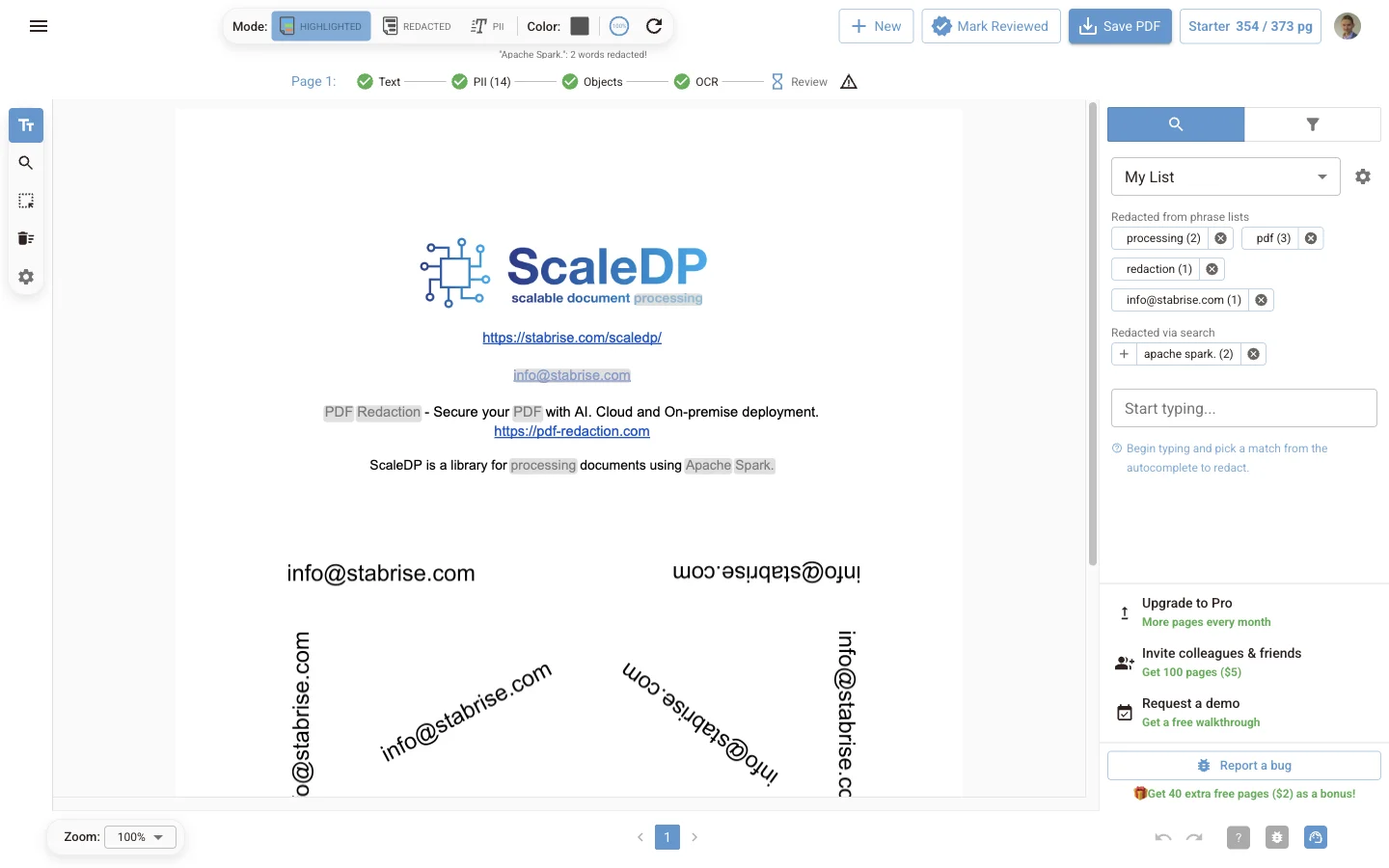
The tab shows:
- Phrase list selector at the top. Tick one or more lists to apply them to the open document.
- The gear button next to it opens Manage phrase lists.
- Redacted from phrase lists: words redacted because they are in an applied list, with the number of matches.
- Redacted via search: words you redacted one-off with the search box. The + on each chip saves it to a list.
My List
The editor creates a list called My List for you. It has auto-apply turned on, so whatever you save to it is redacted in each document you open. You can rename it or turn auto-apply off, but you can't delete it.
Save phrases to a list
There are three ways to add a phrase.
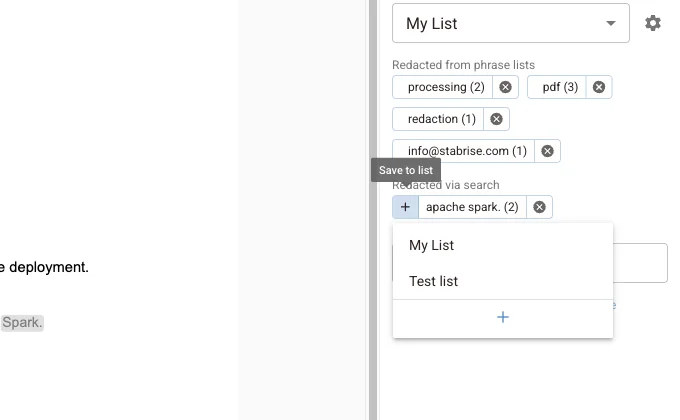
From a search redaction. Redact a word with the search box, then click + on its chip under Redacted via search and pick a list. Click the + at the bottom of the menu to create a new list.
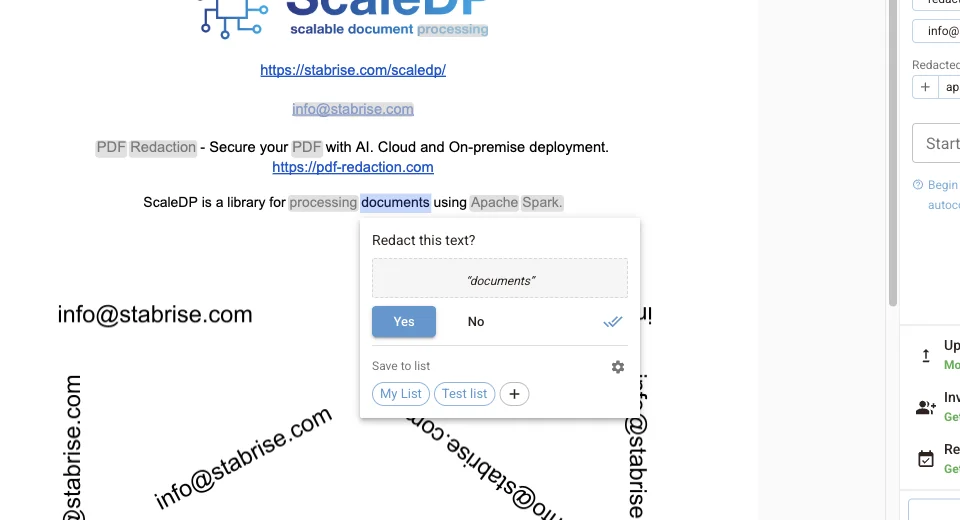
From selected text. Select text on the page with the text tool. The Redact this text? prompt has a Save to list row: click a list to redact the text and save it to that list in one step. The + creates a new list, and the gear opens Manage phrase lists.
By typing it. In Manage phrase lists, type into Add phrase under a list and press Enter or click +. Use this to prepare a list before you have a document that contains the words.
Apply a list to a document
Open the Phrase list selector and tick a list. The editor searches every page and redacts each phrase it finds, then shows Applied N of M phrases in the status line. Phrases that are not in the document are skipped.
- Matching ignores case: a saved
Smithalso redactsSMITHandsmith. - A phrase matches whole words in order.
John Smithredacts the two words together, notJohnon its own. - Punctuation counts. A phrase saved as
Spark.with the full stop won't matchSparkwithout it. - While a document is still processing, the list is applied again as each page's text or OCR becomes ready, so matches on later pages are not missed.
Untick a list to remove its redactions again. A phrase that is also in another list you still have ticked stays redacted. To remove a single phrase from this document only, click the cross on its chip.
Auto-apply to every document
Turn on auto-apply for a list in Manage phrase lists. From then on it is ticked and applied automatically in each document you open, as soon as the text is ready. Lists with auto-apply show (auto-apply) in the selector. Turn it off to stop applying the list to new documents; documents already redacted keep their redactions.
Manage phrase lists
Click the gear next to the selector, or in the Redact this text? prompt.
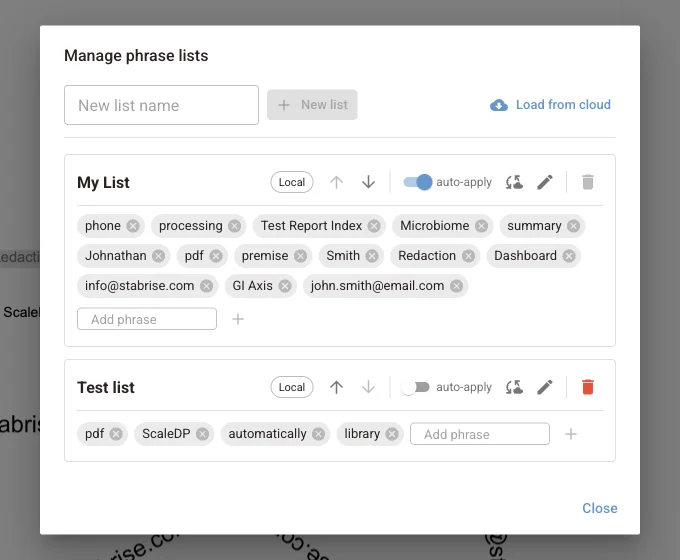
| Control | What it does |
|---|---|
| New list name + New list | Creates an empty list |
| Arrows | Move a list up or down. The order is also the order in the selector |
| auto-apply switch | Applies the list to every document you open |
| Sync button | Uploads the list to your account (see below) |
| Pencil | Renames the list |
| Bin | Deletes the list and its phrases. Not available for My List |
| Cross on a phrase | Removes that phrase from the list |
| Add phrase | Adds a phrase by typing it |
| Load from cloud | Downloads the lists you synced from another device or browser |
Where lists are stored and syncing
Phrase lists are saved in your browser, on this device. Your account doesn't get a copy until you sync one. The badge next to each list's name shows its state: Local, Syncing, Synced, Error or Conflict.
To use a list on another computer or in another browser:
- Sign in and click the sync button on the list in Manage phrase lists. The badge changes to Synced.
- On the other device, sign in with the same account, open Manage phrase lists and click Load from cloud.
Sync is one list at a time and only when you click the button. After you edit a synced list, sync it again to upload the changes. If the copy in your account was changed from another device since your last sync, the badge shows Conflict; syncing again overwrites the account copy with the list on this device.
What syncing sends
Only a list you sync is sent to your account, with its name and phrases. Unsynced lists never leave the browser. Applying a list to a document runs in the browser too: the editor matches phrases against text it has already extracted and doesn't send the list anywhere.
Next steps
Review and edit redactions
Reference for reviewing findings in the online editor: the PII filter, the findings table, Manual Redaction search, text selection, drawn boxes and review status.
Bad redaction check
Use the editor's Unredact mode to scan a PDF for text left under black boxes or painted invisible, reveal, copy or download it unredacted, and redact it properly in one click.